This page includes:
About contracts and channels
FortiMail Workspace Security can protect various channels, such as email
There is a set of approximately 15 pre-defined contracts. You can't modify any of these pre-defined contracts. Not all contracts are available to all organizations.
To make a contract - and it's included channels - available to an organization, the contract must be assigned to the organization. You can assign one or more contracts to an organization.
|
Note: Contracts can be assigned and unassigned only by:
|
|
The Profile page can be accessed by admin users with a user role of Cyber Expert [or higher]. [See Admin-User Role Permissions for details and limitations] |
Contract settings
Each contract has various settings. Most of the settings can't be modified by an admin user - the settings can be modified by FortiMail Workspace Security Support only. The only setting that can be modified by an admin user is the number of Reported Seats - if Reported Seats is the selected license source.
To view or edit the contract settings:
-
In FortiMail Workspace Security, in the left navigation menu, select Settings > Contracts and Channels.
-
Under Assigned contracts, locate the contract whose setting you want to view or edit.
-
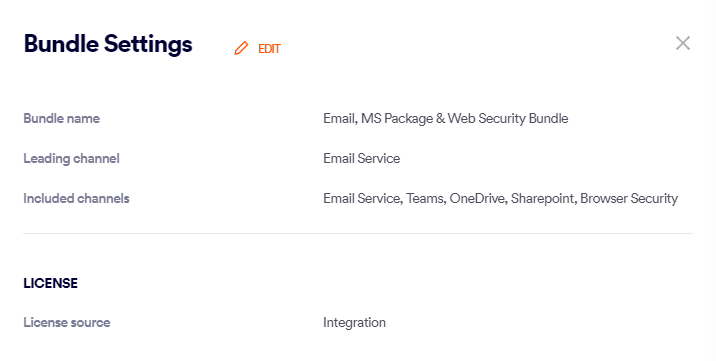
Click Contract settings - on the right of the contract name. The Contract Settings pane opens - listing all the current contract settings.
-
Click Edit [
 ] to modify any of the modifiable settings.
Note:
-
The only setting that can be modified by an admin user is the number of Reported Seats - if Reported Seats is the selected license source.
-
If the Edit control doesn't appear, then the contract isn't a billing-enabled contract, and no settings for the contract can be configured. See Billing-enabled contracts.
-
Each contract includes the following settings:
|
Contract name |
The name of the contract. This setting can't be modified. |
||||||||||||||||
|
Leading channel |
Used for billing purposes. The billing details for all channels in the contract will be based on the billing details of the leading channel.
This setting can't be modified. |
||||||||||||||||
|
Included channels |
The list of channels that are included in the contract. When the contract is assigned, all these channels will be added to the Enabled Channels list, and each channel will have the Inactive status. This setting can't be modified. |
||||||||||||||||
|
License source |
The source of the value for Billed licenses for all the channels in the contract - and how the number of licenses is determined. The options are:
For details on how to configure or switch the license source, see Configuring [editing] or switching the license source. |
||||||||||||||||
Assigning a contract to an organization
The list of assigned contracts appears at the top of the "Contracts and Channels" page.
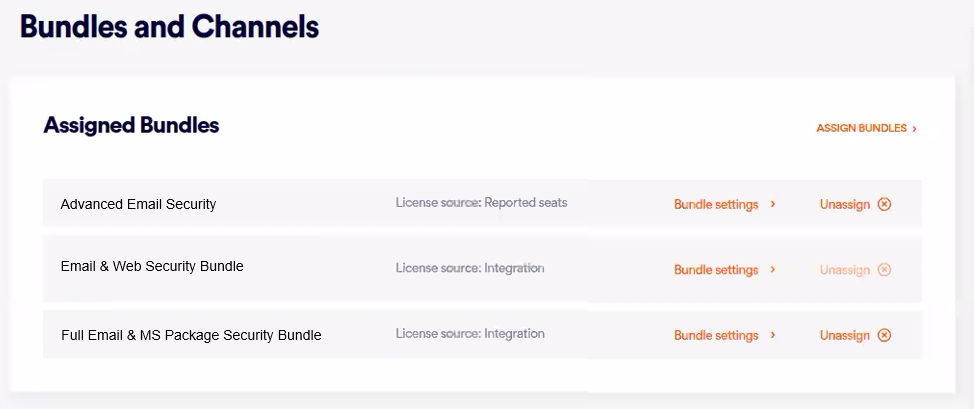
The process of assigning contracts differs depending on whether or not the organization is registered with FortiCloud.
-
Organizations not registered with FortiCloud
|
When you assign a contract to an organization, all the channels that are included in the contract will be added to the organization as Enabled Channels. The status of each added channel will be Inactive. There is a set of approximately 15 pre-defined contracts. These contracts can't be modified. Not all contracts are available to all organizations. The set of contracts that is available to an organization is configured and maintained by FortiMail Workspace Security Support.
To assign a contract to an organization:
|
-
Organizations that are registered with FortiCloud
|
When an organization is registered with FortiCloud, the "Contracts and Channels" page will show a list of the assigned contracts for the organization.
However, you can't use FortiMail Workspace Security to assign additional contracts. Additional contracts are assigned via FortiCloud only. When a new contract for the organization is added in FortiCloud, the contract will be automatically added to the list of assigned contracts in the "Contracts and Channels" page. |

Unassigning a contract
The process of un-assigning contracts differs depending on whether or not the organization is registered with FortiCloud.
-
Organizations not registered with FortiCloud
You can un-assign an assigned contract. This removes all the included channels from the list of Enabled Channels - except for channels that are included in other assigned contracts.
To un-assign a contract from an organization:
|
Contracts and billing
Billing per contract is calculated according to the leading channel and the license source that is specified for the leading channel. This applies to the following channels only:
-
Browser
-
OneDrive
-
SharePoint
-
Teams
For all other channels, billing is not determined by FortiMail Workspace Security.
|
Note: Only billing-enabled contracts include billing information. For details, see Billing-enabled contracts. |
Channel statuses
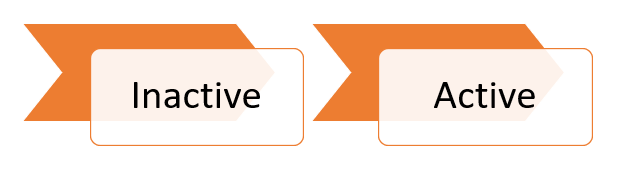
Each enabled channel can have one of the following two statuses:
|
Inactive |
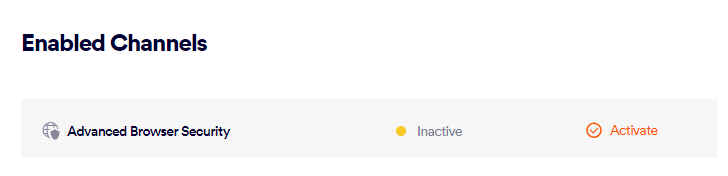
The channel is included in one of the assigned contracts. An inactive channel is not protected. If you want to protect a channel that is currently inactive, the channel must first be activated.
|
|
Active |
An active channel is protected by FortiMail Workspace Security, and is called a protected channel.
|
|
Incomplete |
There are no protected assets for the channel. Incomplete channels are marked as being Incomplete [ This status is available for email channels only. |
 ].
].
 ].
]. ].
].Activating a channel
Each enabled channel can be in one of the following statuses: inactive or active. You can activate an inactive channel. When the activation procedure is complete, the channel will be active. Each channel that is active is protected by FortiMail Workspace Security.
To activate a channel:
-
In FortiMail Workspace Security, in the left navigation menu, select Settings > Contracts and Channels.
-
In the Enabled Channels section, locate the inactive channel that you want to activate, and click Activate.
This will start the activation procedure. Each channel has its own unique activation procedure. For details about the activation procedure for a specific channel, see the relevant page in this Documentation Center.
Deactivating a channel
Each enabled channel can be one of the following statuses: inactive, or active. It is possible to deactivate an active channel. After you deactivate a channel, the channel will no longer be protected by FortiMail Workspace Security.
To deactivate a channel:
-
In FortiMail Workspace Security, in the left navigation menu, select Settings > Contracts and Channels.
-
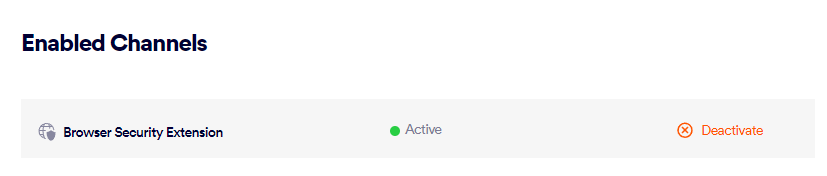
In the Enabled Channels section, locate the active channel that you want to deactivate, and click Deactivate.
 Deactivating FortiMail Browser Security - what happens
After you deactivate FortiMail Browser Security, all extension-side functionality will be inactive. This includes:
-
Website/file malware detection will be in disabled mode.
-
Website rules will not take effect.
-
Anti-tampering will not operate.
-
Upload auditing will not operate.
There will be limited FortiMail Browser Security console functionality:
-
Users can be added and removed.
-
Policy assignments stay as-is.
-
Policy objects can't be changed.
-
Extension activity can be viewed.
Configuring the default channel detection settings
You can configure various default settings - such as quarantine configurations - that affect the detection that is performed during scans. These default settings apply to all channels. For details, see Detection.
Configuring the location for Spam emails
|
Note: The spam remediation option described below appears only if a Microsoft 365 API inbound integration is configured. The option doesn't appear if a Microsoft 365 Inline integration is configured. |
You can specify what happens to emails that are assigned a spam verdict [if spam emails are not configured to be quarantined]. The options are:
-
Inbox: The email is sent to the user's Inbox. This setting is typically used for PoC installations - not for production installations.
-
Junk: The email is sent to the user's Junk folder. This setting is typically used in production installations - not in PoC installations.
For details, see Configuring the spam remediation destination.
Billing-enabled contracts
Each contract may be a billing-enabled contract. A billing-enabled contract includes information, such as License Source, that is used for billing purposes. Only billing-enabled contracts are editable.
About contracts for PAX8 organizations
For organizations through PAX8:
-
A limited set of contracts is available.
-
Only one billing-enabled contract should be assigned at any time. If more than one billing-enabled contract is assigned, billing errors may occur.
Note: When you transition from one billing-enabled contract to another, it is acceptable to temporarily have two billing-enabled contracts assigned. To reduce billing issues, remember to unassign any billing-enabled contracts that are not required, as soon as the transition is complete.
Channel categories
The available channels are divided into the following categories:
-
Advanced Security
-
Cloud Storage
-
Messaging
-
CRM
-
Cloud Endpoint
-
Other integrations
Advanced Security
|
Email Service Only a single email service integration can be enabled at any time - either Microsoft 365 or Google Workspace. |
|
|
Microsoft 365 [ |
Integration with Microsoft 365 uses the inline or the Microsoft API connection methods - with no MX record change. Connection scope: Indicates which emails will be scanned: inbound, outbound, and/or internal. For setup instructions, see Integration with Microsoft 365. |
|
Account Takeover (ATO) detection Detects if an email account has been taken-over. Requires integration of FortiMail Workspace Security with Microsoft 365. For setup instructions, see Configuring Microsoft 365 - ATO detection. |
|
|
Outbound email scanning Scans outgoing [outbound] emails to detect malicious file attachments and malicious URLs. For setup instructions, and other details, see Onboarding Microsoft 365 - Outbound. |
|
|
Google Workspace [ |
Integration with Google Workspace uses inline integration - with no MX record change. For setup instructions, see Integrating with Google Workspace. |
|
Browser Extension |
|
|
Browser Security Extension [ |
The FortiMail Browser Security browser extension can scan downloaded files, check web pages for malicious content, and more. For details, see About FortiMail Browser Security. |
 ]
] ]
] ]
]Cloud Storage
|
Google Drive [ |
Helps to protect all the files in your Google Drive account. After you add Google Drive as a channel, FortiMail Workspace Security will scan all files that are uploaded to Google Drive, and all files in Google Drive that are modified. For details on how to configure the Google Drive integration, see Google Drive integration. |
|
OneDrive [ |
Helps to protect all the files in your Microsoft OneDrive account. When you add OneDrive as a channel, FortiMail Workspace Security will scan all files that currently exist in OneDrive. Thereafter, FortiMail Workspace Security will scan all files that are uploaded to OneDrive, and all files in OneDrive that are modified. For details on how to configure the OneDrive integration, see OneDrive integration. |
|
Dropbox [ |
Helps to protect all the files in your Dropbox account. When you add Dropbox as a channel, FortiMail Workspace Security will scan all files that currently exist in Dropbox. Thereafter, FortiMail Workspace Security will scan all files that are uploaded to Dropbox, and all files in Dropbox that are modified. For details on how to configure the Dropbox integration, see Dropbox integration. |
|
Box [ |
Helps to protect all the files in your Box account. When you add Box as a channel, FortiMail Workspace Security will scan all files that currently exist in Box. Thereafter, FortiMail Workspace Security will scan all files that are uploaded to Box, and all files in Box that are modified. For details on how to configure the Box integration, see Box integration. |
|
SharePoint [ |
For details on how to configure the Microsoft SharePoint integration, see SharePoint integration. |
|
Amazon S3 [ |
Enhance your Amazon S3 security by scanning every file that is uploaded to Amazon S3. For setup instructions, see Amazon S3 integration. |
 ]
] ]
]  ]
] ]
] ]
] ]
]Messaging
|
Microsoft Teams [ |
For details on how to configure the Microsoft Teams integration, see Microsoft Teams integration. |
|
Slack [ |
Enhance your Slack security by scanning every file that is uploaded to Slack - as an attachment to a conversation. For setup instructions, see Slack integration. |
 ]
]  ]
]CRM
|
SalesForce [ |
For details on how to configure the Salesforce integration, see Salesforce integration. |
|
Zendesk [ |
Enhance your Zendesk security by scanning every file that is uploaded to Zendesk - as an attachment to a comment in a ticket. For setup instructions, see Zendesk integration. |
 ]
] ]
]Cloud Endpoints
|
CrowdStrike [ |
For details, see CrowdStrike integration. |
|
SentinelOne [ |
For details, see SentinelOne integration. |
|
Cynet [ |
For details, see Cynet integration. |
 ]
] ]
] ]
]Other Integrations
|
Self Analyze [ |
Scans that were performed using the Self Analyze feature in FortiMail Workspace Security. For details, see Self Analysis. |
|
API [ |
Scans that were performed using the files and urls APIs. For details, see API - Files and API - URLs. |
 ]
] ]
]See also:
