This page includes:
About onboarding Google Workspace using the Google API
You can connect your Google Workspace-based email services to FortiMail Workspace Security – using the Google API. This is called the Google Workspace API connection method.
This page describes how to integrate FortiMail Workspace Security with Google Workspace using the Google Workspace API connection method. For details on how to integrate FortiMail Workspace Security with Google Workspace using the inline connection method, see Step 1 - Onboarding Google Workspace [Inline].
-
For a comparison between the Google Workspace API and Inline connection methods, see Comparing the Google Workspace Inline and API integration methods.
|
Note: With Google Workspace API integrations, FortiMail Workspace Security scans email messages up to a maximum size of 500 MB [including attachments]. |
By default, Google Workspace API integrations monitor incoming emails only - not outgoing emails, nor internal emails. [Internal emails are emails that are sent between protected domains in the same organization.]
For information about configuring scanning of outgoing email, see Onboarding Google Workspace - Outbound.
|
Note:
|
A bit more about the Google Workspace API integration
Onboarding process
-
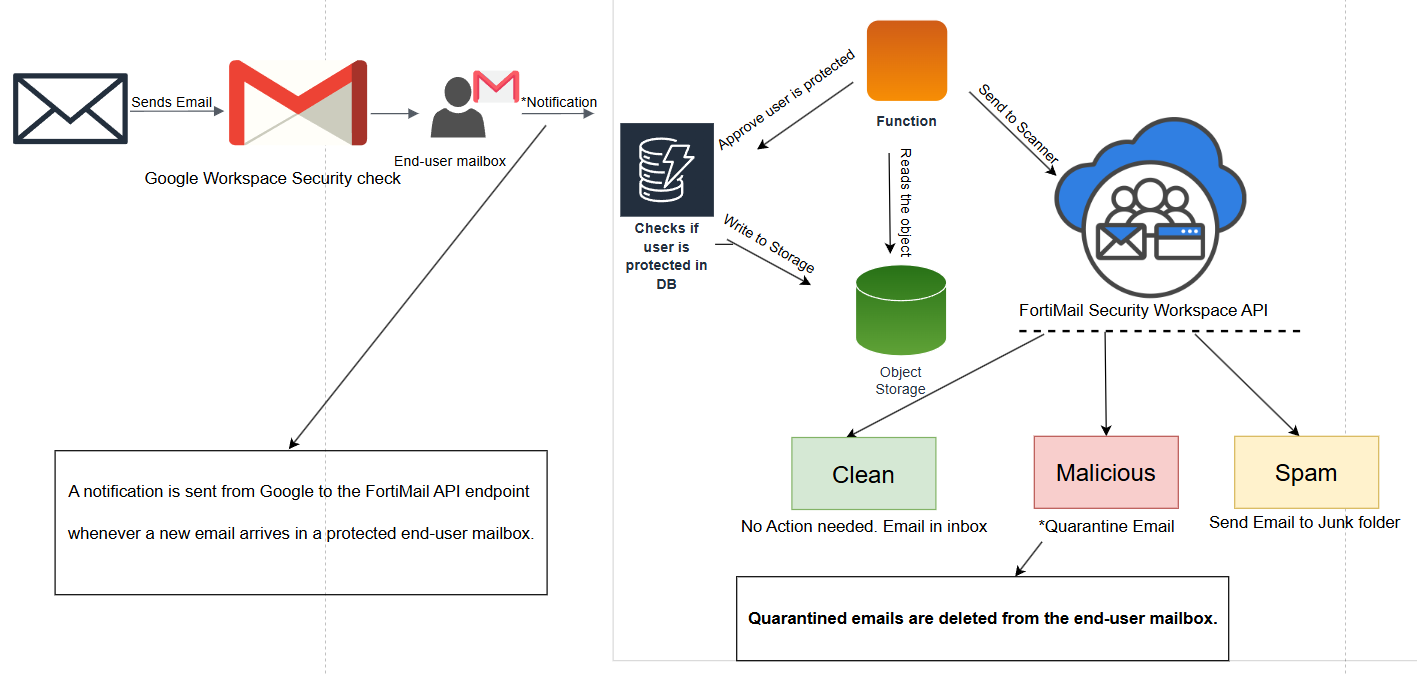
API scanning initiates by creating a Webhook for each user within the Google Workspace environment.
Protection mechanism
-
When a user is protected by FortiMail Workspace Security Google Workspace API integration, the scan activates upon the arrival of an inbound email.
-
Google Workspace triggers a notification to the scanning system about a new email in the user's Inbox.
-
The system retrieves the email's metadata and EML file copy for analysis.
Scan and response
-
Clean: If an email is assigned a clean verdict, the email remains in the user's Inbox - without any intervention.
-
Spam: By default, spam emails are moved to the Spam folder via Google API calls.
-
Malicious: By default, malicious inbound emails are deleted from the recipient's mailbox.
Note: End users may see malicious emails in their inboxes for a few seconds before the scan is completed and the email is deleted.

How to onboard Google Workspace using the Google API
This onboarding procedure for a Google Workspace API integration includes:
-
Specifying the connection method.
-
Enabling the FortiMail Workspace Security app - that enables the required access to your Google Workspace account.
-
Specifying who to protect [the plan].
-
Initiating the connection process.
To onboard Google Workspace using the Google API:
-
In FortiMail Workspace Security, select Settings > Contracts and Channels.
-
Under Enabled Channels, locate Email Service, and then click Email service configuration [
 ] on the right.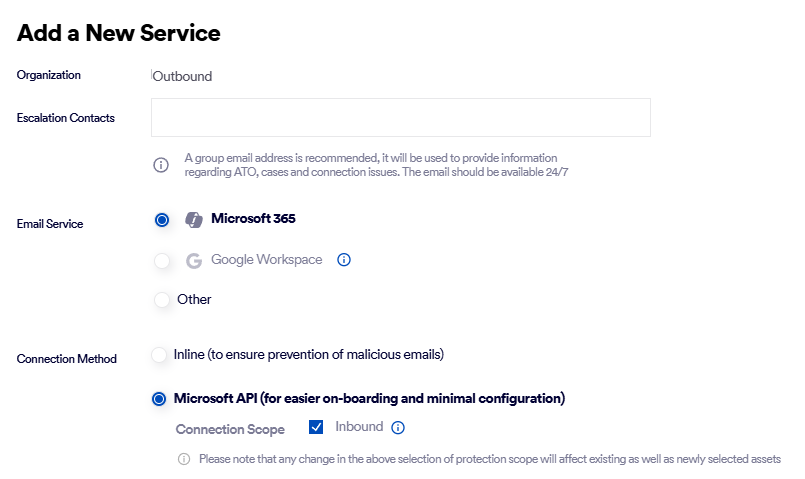
-
Click Add A New Email Service - if this option appears.
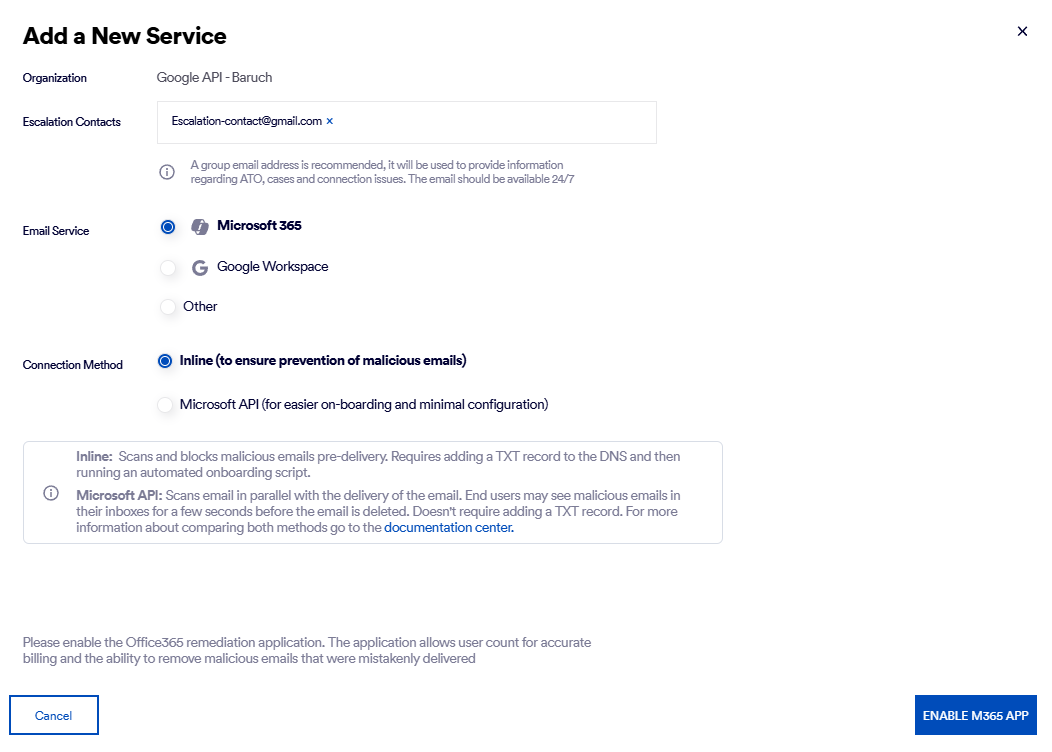
The "Add a New Service" dialog box will open.
-
Select the Organization - if necessary.
Note: Make sure to select the organization in which the scanning will occur. This is typically a child organization - not a parent organization.
-
Specify the Escalation contacts. For details, see Escalation contacts.
-
In Email Service, select Google Workspace.
-
In Connection Method, select Google API.
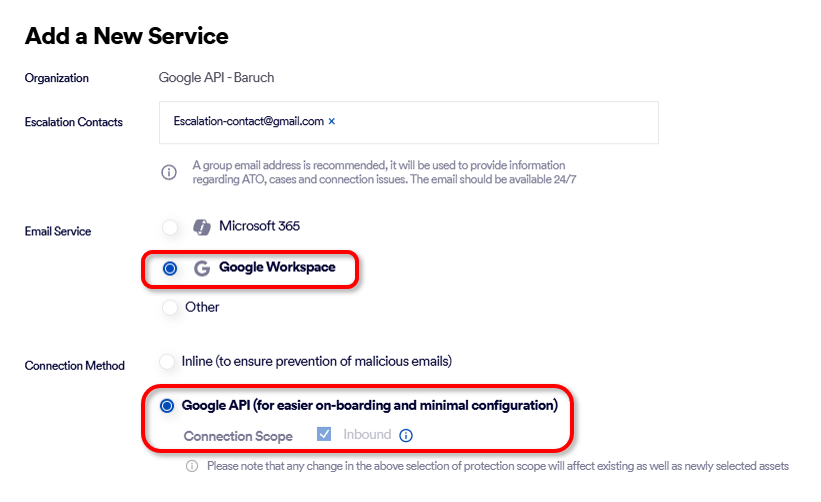
Connection Scope:
-
Inbound: Will be automatically selected. This configures FortiMail Workspace Security to scan emails that are received from outside the organization.
-
Outbound: [Optional] This configures FortiMail Workspace Security to scan emails that are sent from inside the organization. This option appears only if outbound scanning is enabled. For details, see Onboarding Microsoft 365 - Outbound.
Note: By default, internal email is not monitored. To add monitoring for internal email, contact FortiMail Workspace Security Support [support@perception-point.io]. There may be additional licensing requirements for enabling internal scanning.
-
-
Click Enable Google Workspace App - in the bottom right corner. [This is the remediation app.]
Important: If the Enable Google Workspace App button is not enabled, make sure that you have specified an escalation contact above.
-
You'll be redirected to a dialog box with instructions, and at the bottom, a place to enter an email address.
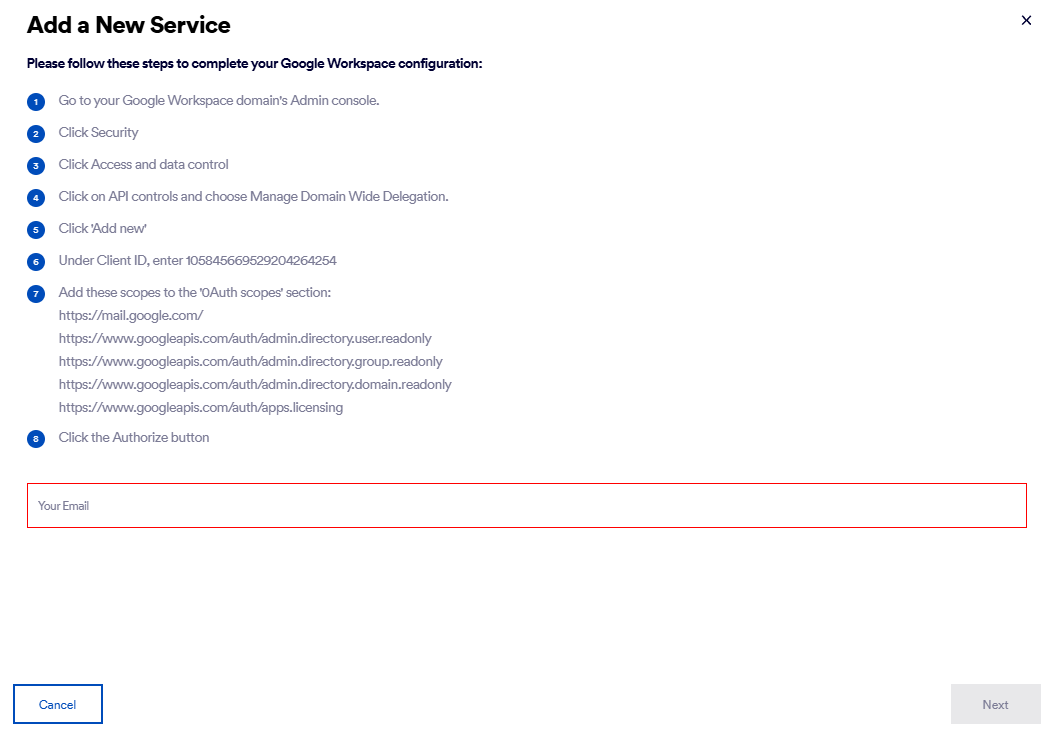
Keep this dialog box open - you'll return to this page later to complete this step, as described below.
-
In Google Workspace:
-
Go to your Google Workspace domain's Admin Console.
-
Click Security > Access and data control > API controls.
-
Scroll down to the "Domain wide delegation" section, and then select "Manage Domain Wide Delegation".
-
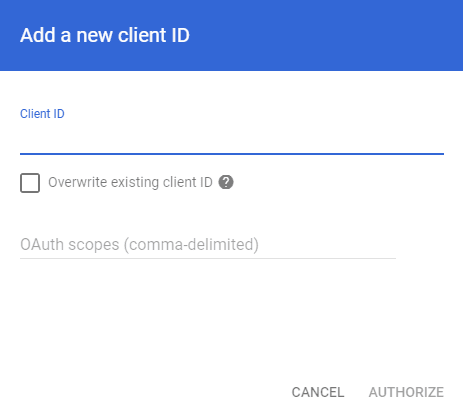
Click Add new.
-
Under Client ID, enter 105845669529204264254
-
Add these scopes to the "0Auth scopes" section:
-
https://mail.google.com/
-
https://www.googleapis.com/auth/admin.directory.user.readonly
-
https://www.googleapis.com/auth/admin.directory.group.readonly
-
https://www.googleapis.com/auth/admin.directory.domain.readonly
-
https://www.googleapis.com/auth/apps.licensing
-
https://www.googleapis.com/auth/calendar.events
Note: You can click the Copy to Clipboard icon [
 ] in the "Email Service Configuration" dialog box to copy a comma-delimited list of the required scopes.
-
-
Click Authorize.
-
-
In FortiMail Workspace Security
Return to the dialog box in FortiMail Workspace Security that was opened earlier in this procedure:
-
In the field with the text "Your Email" [at the bottom of the dialog box], enter an admin email address [see the Important note below for details].
Important:
-
We recommend that you create an email address that is dedicated to this integration only. This will ensure that the email address is always available - and that the integration is not dependent on the continued availability of a specific user in your organization.
-
The email address should have Super Admin privileges [with API permissions].
An error message similar to "Integration Error: email address may be invalid" may indicate that the specified user [email address] doesn't have the required permissions.
-
-
Click Next.
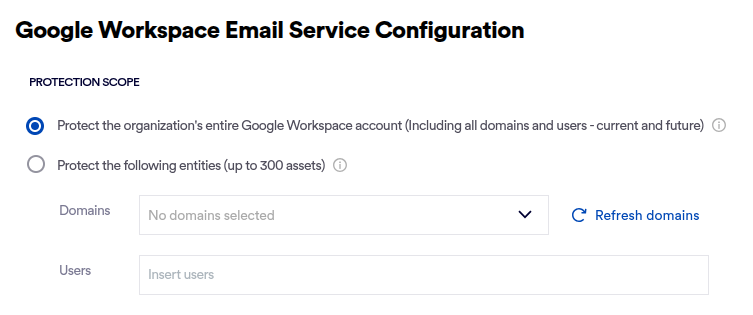
The "Add a New Service - Protection" dialog box opens.
-
-
-
Specifying who to protect [Google Workspace - API]
[This is also known as the plan.]
-
Protect the organization's entire Google Workspace account: Protects all email addresses in all the domains that are included in your organization's Google Workspace account.
Note: Domains and email addresses that are added in the future to the organization's Google Workspace account will be automatically protected - it is not necessary to make any changes in FortiMail Workspace Security.
-
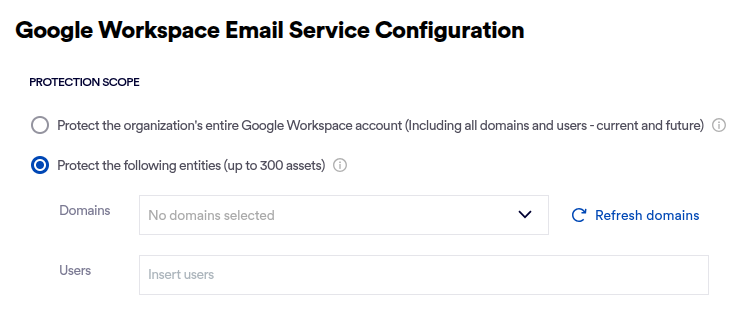
Protect the following entities: Allows you to specify which domains, groups, and users [email addresses] to protect.
Note:
-
After onboarding a Google Workspace API integration, you can change the set of assets that are protected by FortiMail Workspace Security. Changing the set of assets includes:
-
deleting any of the specified domains, groups, or users
-
specifying additional domains, groups, or users
For details, see Editing the protected assets.
-
-
You can specify a maximum of 300 assets [domains, groups, and users] to protect.
-
Note: A domain or a group that contains multiple users is considered to be one asset.
-
Domains
Protects the domains that you select. All users inside the selected domains will be protected.
Note:
-
Email addresses that are added [in Google Workspace] in the future to any of the specified domains will also be protected.
-
Domains that are added to the organization's Google Workspace account won't be automatically protected. For details, see Adding a domain to an existing integration.
[It may take up to 24 hours for a new or modified entity to be added or updated in FortiMail Workspace Security.]
Groups
Protects the groups that you specify. All users inside the specified groups will be protected.
Note:
-
Email addresses that are added [in Google Workspace] in the future to any of the specified groups will also be protected.
[It may take up to 24 hours for a new or modified entity to be added or updated in FortiMail Workspace Security.]
Users
Protects all the users that you specify.
Note:
-
Email addresses that you specify must be included in your Google Workspace account.
Note about future changes:
-
Domains that are added to your Google Workspace account in the future will not be automatically protected.
-
Email addresses that are added in the future [in Google Workspace] to any of the specified domains or groups will also be protected.
[It may take up to 24 hours for a new or modified entity to be added or updated in FortiMail Workspace Security.]
-
Email addresses that are added to your Google Workspace account [outside of the specified domains and groups] in the future will not be protected.
-
-
-
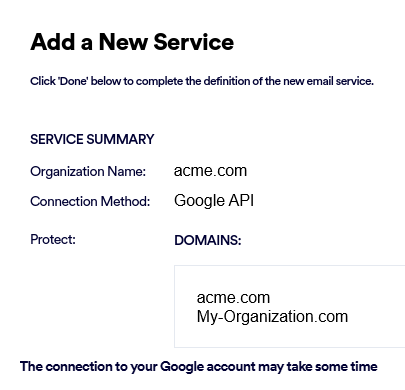
Click Next. A summary of your selected configurations will be displayed.
-
Review the configurations, and then click Done. This will begin the connection process to protect the users that you specified above. This connection process may take a while to complete.
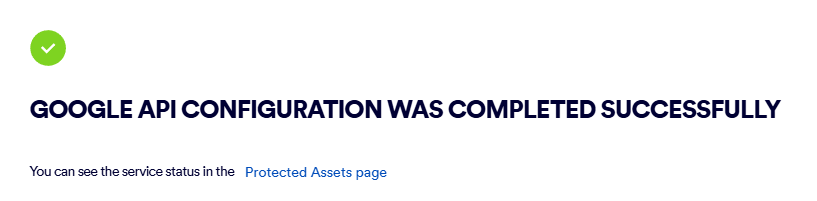
Note: If spam is not automatically quarantined and end users don't have any contradictory rules in their Google email accounts, emails identified as spam will be delivered to the Spam folder by default. To change the Spam delivery destination, see Configuring the spam remediation destination below.
-
If you want to configure this Google Workspace integration to operate in monitoring mode, continue with Configuring monitoring mode below.
Configuring monitoring mode
|
Important: Perform this procedure only if you want your Google Workspace API integration to operate in monitoring mode. Monitoring mode is typically used for PoC implementations. In monitoring mode [also known as passive, silent, or detection mode], FortiMail Workspace Security will not:
|
To configure the API integration to operate in monitoring mode:
-
Open the Settings > Contracts and Channels page.
-
On the right, click Channel Settings.
-
Click Edit [
 ].
]. -
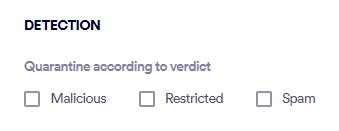
Under Detection, clear the Malicious, Restricted, and Spam check boxes.
-
Click Save.
-
Open the Settings > Contracts and Channels page.
-
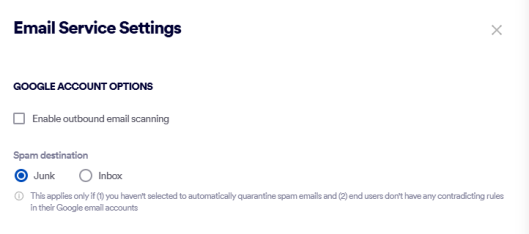
Under Enabled Channels, on the right of Email Service > Google Workspace, click Email Service Settings. The "Email Service Settings" sidebar opens.
-
Click Edit [
]. -
Under "Google Account Options" > "Spam destination", select Inbox.
-
Click Save.
Your Google Workspace API Integration is now configured to operate in monitoring mode.
FortiMail Workspace Security will not quarantine any malicious emails or route spam to Spam folders.
Configuring feedback emails [Optional]
By default, the FortiMail Workspace Security IR Team won't send feedback to end-users that report email messages using the Report Message button. However, you can configure FortiMail Workspace Security so that the FortiMail Workspace Security IR Team will send feedback to end-users that report email messages. For details, see Notify requester upon investigation handling.
Adding protected Assets [domains, groups, and users]
After you have configured a Google Workspace API integration, you can add domains, groups, and users to the list of assets that are protected.
|
Note: You can add domains, groups, and users only if you are protecting just a specified set of assets [partial account protection] - and not the entire Google Workspace account. For details, see Full account protection vs Partial account protection. |
To add domains, groups, and users to the list of assets that are protected:
-
In FortiMail Workspace Security, go to Settings > Protected Email Assets.
-
Click "Configure Email Protection" in the top-right corner. This will open the configuration wizard.
-
In the wizard, use the available controls to add the required domains, groups, and users.
-
Click Next to continue with the required configuration changes.
|
Note: You can also click "Add Domains" or "Add Groups" or "Add Users" on the right of the relevant section. A pane will open on the right - enabling you to add the required assets. |
Configuring protected assets [domains, groups, and users]
After you have configured a Google Workspace API integration, you can configure [edit] the protected assets, as shown below.
|
Note: You can configure protected assets only if you are protecting just a specified set of assets [partial account protection] - and not the entire Google Workspace account. For details, see Full account protection vs Partial account protection. |
|
To add a domain, group, or user:
|
|
You can use the functionality on the Protected Email Assets page to enable, disable, or delete any of the protected assets [domains, groups, and users]. The required controls are found on the right of each protected asset. |
Configuring the spam remediation destination
Configuring a Google Workspace API integration includes specifying what happens to emails that are assigned a spam verdict [if spam emails are not configured to be quarantined]. The options are:
- Inbox: The email is sent to the user's Inbox. This setting is typically used for PoC installations - not for production installations.
-
Junk: The email is sent to the user's Spam folder. This setting is typically used in production installations - not in PoC installations.
With the Google Workspace API integration, FortiMail Workspace Security may move an email from the Inbox to the Spam folder after the email has initially arrived in the Inbox. The procedure is therefore referred to as "spam remediation".
When a Google Workspace API inbound integration is initially configured, the spam remediation destination is set to Junk.
|
Note: The "spam remediation" functionality will apply only if:
|
|
Important: The spam remediation controls are functional only if a Google Workspace API inbound integration is configured. The controls are NOT functional if a Google Workspace Inline integration is configured. |
To change the spam remediation destination:
-
Open the Settings > Contracts and Channels page.
-
Under Enabled Channels, on the right of Email Service > Google Workspace, click Email Service Settings.
The "Email Service Settings" sidebar opens.
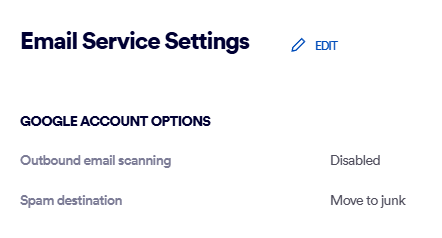
Note: The "Spam destination" functionality is applicable to Google Workspace API integrations only - not to Google Workspace Inline integrations.
-
Click Edit [
]. -
Under "Google Account Options" > "Spam destination", select Junk or Inbox.
-
Click Save.
Automatic calendar events
When the Google Workspace API integration method is used in an organization, if an email includes a calendar event [typically in an .ics attachment], the event may be automatically added to the Google calendar of the recipient. If FortiMail Workspace Security then scans the email and finds it to be malicious, FortiMail Workspace Security will attempt to remove the calendar event from the recipient's calendar.
|
Note: Calendar events can be automatically added to a Google calendar only if the Google settings allow this to occur. For details about how to disable the automatic addition of calendar events, see Disabling automatic calendar events below. |
The remediation functionality described above can be performed only if the required Google API scope is added to the existing Perception Point Domain-Wide Delegation configuration.
-
If a Google Workspace integration was configured after 22 September 2026, then the required scope will be added as part of the onboarding procedure. No further actions are required.
-
If a Google Workspace integration was configured before 22 September 2026, then it may be necessary to add an additional scope to the existing Perception Point Domain-Wide Delegation configuration, by performing the procedure shown below.
Adding an additional scope to the existing Perception Point Domain-Wide Delegation configuration:
-
In your Google Workspace Admin console, navigate to: Security > "Access and data control" > API controls > "Manage Domain-Wide Delegation".
[Direct link: https://admin.google.com/u/1/ac/owl/domainwidedelegation]
-
Locate "Perception Point" with the following Client ID: 105845669529204264254
-
Edit the existing configuration and add the following scope:
https://www.googleapis.com/auth/calendar.events -
Save the changes.
-
Disabling automatic calendar events
Scenario
-
You have a Google Workspace integration.
-
An email is determined to be malicious - and is quarantined.
-
The email includes a calendar event - typically as a .ics attachment.
Results
-
The calendar event is automatically added to the user's calendar. This occurs as soon as the email reaches the Google Workspace servers - before the email is scanned by FortiMail Workspace Security.
Workaround
To stop Google from automatically adding invitations or events from emails, an administrator can perform the following configuration - for everyone in the organization (or for specific departments/teams):
-
Sign in to the Google Admin Console.
-
Go to Menu > Apps > Google Workspace > Calendar.
-
Click on Advanced Settings.
-
(Optional) If you want to change this for a specific team only, select the Organizational Unit (OU) or Group from the list on the left.
-
Find the section labeled "Add invitations to calendar".
-
Select one of the following options:
-
Invitations users have responded to via email: This is the more restrictive and cleaner option.
-
Invitations from known senders: This allows invites from colleagues or people in their contacts but blocks strangers.
-
-
Click Save.
 Workaround: For end-users
To stop Google from automatically adding invitations or events from emails, end-users can perform the following configuration:
-
Open Google Calendar in your Chrome browser.
-
Click the Gear icon (Settings) in the top right and select Settings.
-
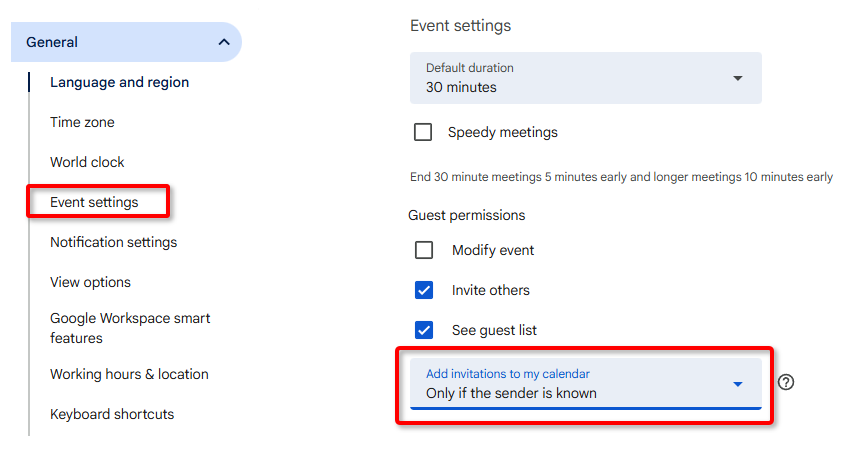
In the left-hand sidebar, click on General > Event settings.
-
Find the setting labeled "Add invitations to my calendar."
-
Change the dropdown to either:
-
Only if the sender is known
- or -
-
When I respond to the invitation in email
Note: This ensures that an event only shows up once you’ve clicked "Yes" or "Maybe" in the actual email.
-
See also:
