This page includes:
About custom messages
The FortiMail Browser Security extension displays block pages and online user notifications to inform end users of potential malicious events.
These block pages and online user notifications may be displayed when an end-user tries to:
-
download a specific file
- or -
-
access a certain URL
By default, all block pages and online user notifications include default messages. The Custom Messages tab inside each policy enables you to define custom messages that will be displayed when a block page or an online user notification is displayed - in place of the default messages.
-
For details about block pages, see Block pages.
-
For details on how to preform additional customizations of online user notifications, see General Settings.
|
Note: Changes that you make to the settings on this page typically take effect immediately, or after a few seconds. |
Opening the Custom Messages tab
To open the "Custom Messages" tab:
-
In the FortiMail Browser Security console, select Policies.
-
Select the required policy, and then click the Custom Messages tab.
Configuring custom messages
Use the settings below, in the "Customize Messages" tab, to configure custom messages.
Configuring file block pages
The "file block" custom messages are applicable only if the file detection mode is either Block or Warn. If the file detection mode is either Disabled or Silent, then custom messages are not applicable. For details on detection modes, see File detection settings.
|
Custom message if a file is blocked |
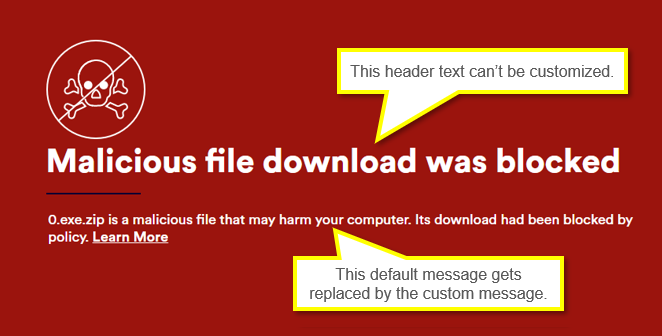
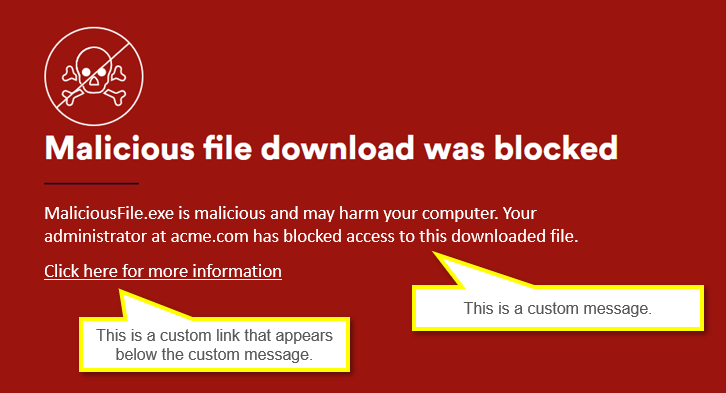
When a user tries to download a file, a block page may be displayed. By default, the block page includes a default message. You can specify a custom message that will be displayed in place of the default message.
|
|
|
Add a link to the custom block message |
Adds a link below the custom message. For example, you could add a <More info> link that opens a page that explains why the user is seeing the block page. Alternatively, you could add a link to a page that enables users to open a support ticket related to the appearance of the block page. You specify the text of the link, and the URL that will open when the link is clicked. If you specify the URL for a link, but not the text for the link, then the URL will appear as the link text as well.
|
Configuring malicious website block pages
The "website detection" custom messages are applicable only if the website detection mode is either Block or Warn. If the website detection mode is either Disabled or Silent, then these messages are not applicable. For details on website detection modes, see Website detection settings.
|
Custom message when a website is detected to be malicious |
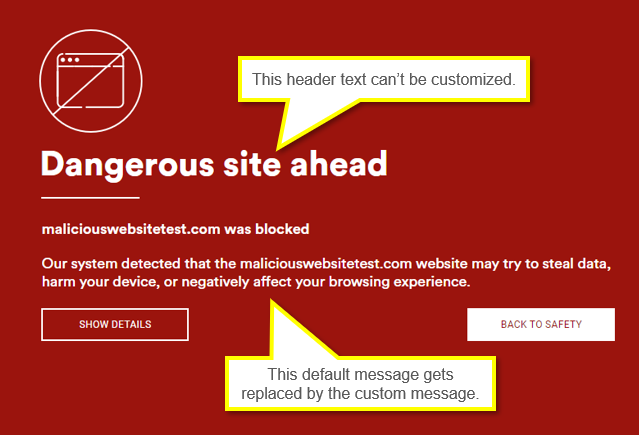
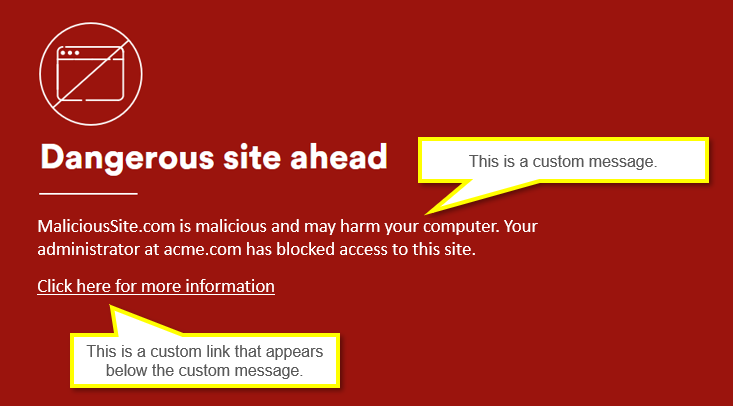
When a user tries to access a specific URL, a block page may be displayed because the URL is determined to be malicious by FortiMail Workspace Security. By default, the block page includes a default message. You can specify a custom message that will be displayed in place of the default message.
|
|
|
Add a link to the custom block message |
Adds a link below the custom message. For example, you could add a <More info> link that opens a page that explains why the user is seeing the block page. Alternatively, you could add a link to a page that enables users to open a support ticket related to the appearance of the block page. You specify the text of the link, and the URL that will open when the link is clicked. If you specify the URL for a link, but not the text for the link, then the URL will appear as the link text as well.
|
Configuring restricted website block pages
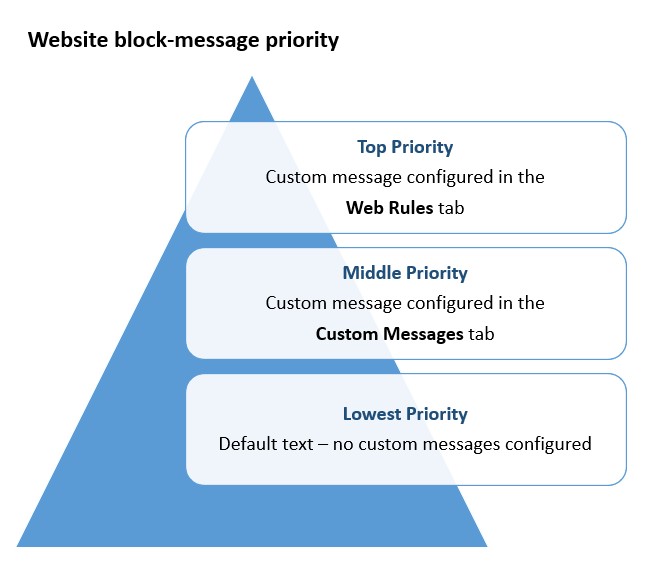
Note: You can over-ride the "restricted custom messages with "website-rule-level" custom messages. For details, see Website rule options.
 Website block-message priority
|
Custom message when access to a website is restricted by a Website Rule |
When a user tries to access a specific URL, a block page may be displayed because access to the URL is restricted by a website rule. By default, these block page includes a default message. You can specify a custom message that will be displayed in place of the default message.
|
|
|
Add a link to the custom block message (Optional) |
Adds a link below the custom message. For example, you could add a <More info> link that opens a page that explains why the user is seeing the block page. Alternatively, you could add a link to a page that enables users to open a support ticket related to the appearance of the block page. You specify the text of the link, and the URL that will open when the link is clicked. If you specify the URL for a link, but not the text for the link, then the URL will appear as the link text as well. |
Configuring user notifications
|
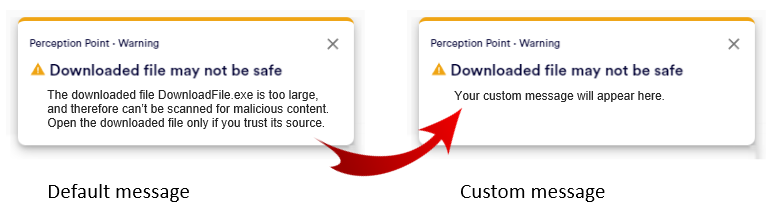
Custom user notification when a download file is too large to be scanned |
By default, downloaded files up to 100 MB can be scanned - larger files are not scanned.
|
See also:
