This page includes the following topics:
About the general settings
The Settings > General settings page lets you manage various configurations for your organization, including the following:
|
Note: Changes that you make to the settings on this page typically take effect immediately, or after a few seconds. |
License details
|
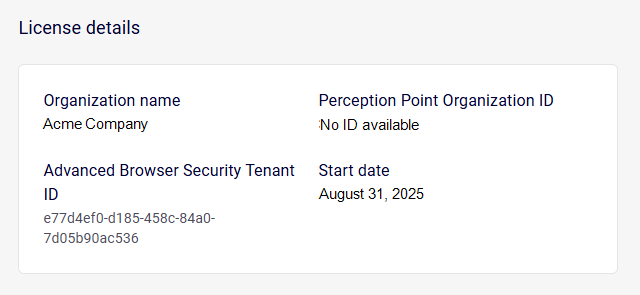
The License details section lets you view the FortiMail Browser Security license details for your organization. To change or update any of the license details, contact Perception Point Support.
|
|
|
Organization name |
The name of your organization. The organization name appears in the banner of the FortiMail Browser Security console. You can't change the organization name.
|
|
FortiMail Browser Security Organization ID |
This is always set to "No ID available". |
|
FortiMail Browser Security Tenant ID |
Perception Point Support may request this FortiMail Browser Security Tenant ID when troubleshooting. You may also need it when you log a service request with Perception Point Support. |
|
Start date |
The date on which the original FortiMail Browser Security license started. |

User Authentication
|
|
||
|
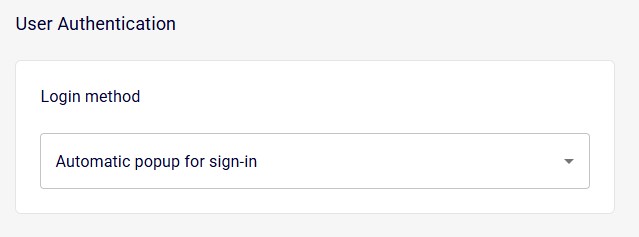
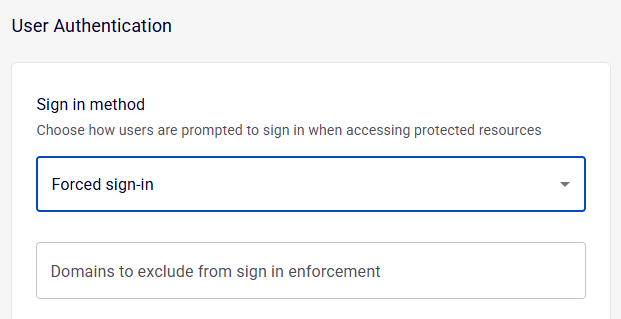
Sign in method |
Defines if end-users must be signed-in to the FortiMail Browser Security extension in order to be able to access the internet:
|
|
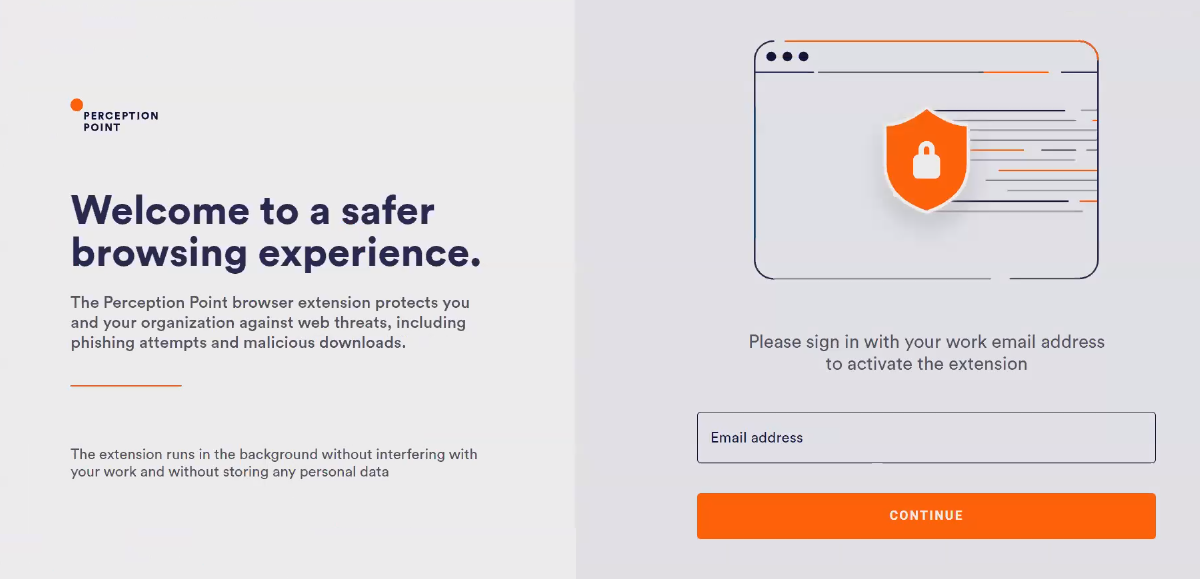
 ] in the browser toolbar.
Browser Extension customizations
|
|
||
|
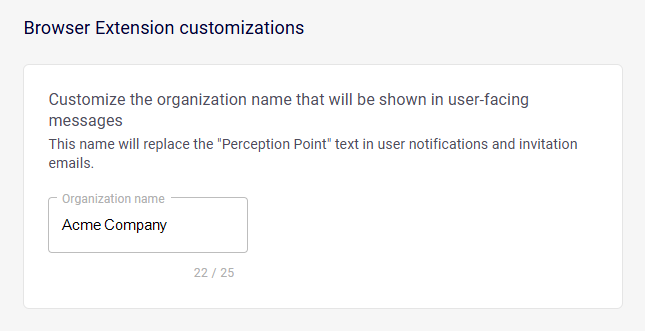
Customize the organization name that will be shown in user-facing messages |
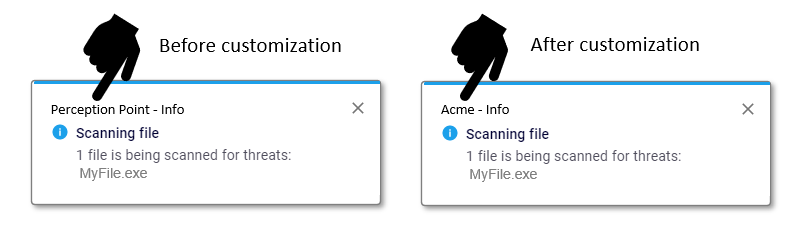
Enter your organization's name. This name will replace the default "Perception Point" in online user notifications [toast messages].
You can specify a name with a maximum of 25 characters.
For details on how to customize block pages, see Custom messages. |
|
User email invitation customization
|
|
||
|
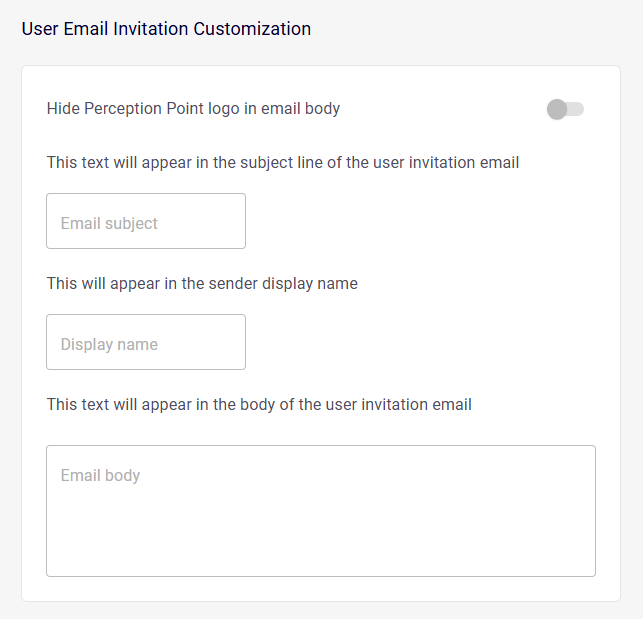
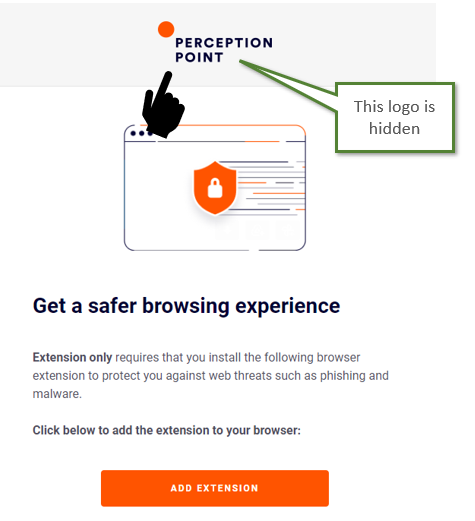
Hide FortiMail Browser Security logo in email body |
When enabled, this toggle hides the FortiMail Browser Security logo that appears by default in the body of invitation emails.
|
|
|
This text will appear in the subject line of the user invitation email |
This text will appear in the subject line of the user invitation email - in place of the default subject line text. |
|
|
This will appear in the sender display name |
This text will appear as the sender display name. |
|
|
This text will appear in the body of the user invitation email |
This text will appear in the body of the user invitation email - in place of the default body text. |
|
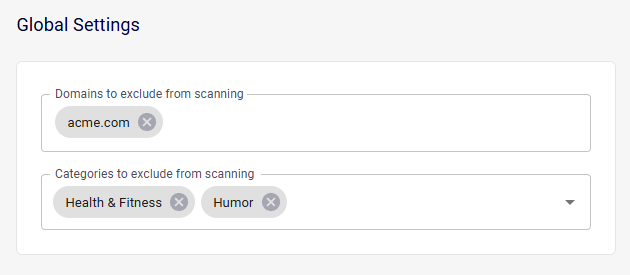
Global Settings
|
|
|
|
Specify the domains that will be excluded from scanning. When a user tries to access a web-page that is in one of the specified domains:
|
|
|
Select the categories that will be excluded from scanning. When a user tries to access a web-page that is in one of the selected categories:
|
|
See also:
