|
Note
|
This page includes:
About integrating FortiMail Workspace Security with an identity provider
You can integrate FortiMail Workspace Security with an external identity provider - such as Microsoft Entra ID, Microsoft Azure AD, Okta, or JumpCloud - to provide SSO [single sign-on] functionality. This integration:
-
Lets admin-users sign-in to FortiMail Workspace Security using their corporate credentials.
-
Uses SAML (Security Assertion Markup Language) to allow identity providers to pass authorization credentials to FortiMail Workspace Security.
|
Note
|
Types of admin-users
There are two types of admin-users:
-
Standard: Admin users that are added via an invitation from FortiMail Workspace Security.
-
SAML: Admin users that are added by FortiMail Workspace Security when the admin-user first signs-in to FortiMail Workspace Security using the SSO integration.
To see a list of admin-users and the type of each user, go to the Settings > Admin Users page - and look for the Connection Type [Standard or SAML].
|
Note: You can simultaneously use standard [auth0] and SAML for authorization in your organization. This enables you to initially assign only a single admin user for SAML authorization - while maintaining standard authorization for all other admin users. This in turn, enables you to test that the SAML integration is working as expected, specifically for a single admin user, before rolling-out the SAML integration to all admin users in the organization. |
Propagating SSO [IdP] settings
SSO configurations that are set in a parent organization are NOT applied [propagated] to the child organizations. Access to child organizations will not be affected by configuring SSO in the parent organization. If required, SSO must be configured separately for each child organization.
Configuring an IdP integration
|
Note The instructions below apply to all identity providers - and not just to one specific provider. The instructions therefore include various non-specific [generic] options and terminology. |
To configure an IdP integration, perform the following steps:
Step 1: Generating the SSO parameters
-
In FortiMail Workspace Security, in the left navigation menu, select Settings > Account.
-
Scroll down to the SAML Integration section.
-
Click Configure to edit the settings.
The SAML Integration Configuration pane will open.
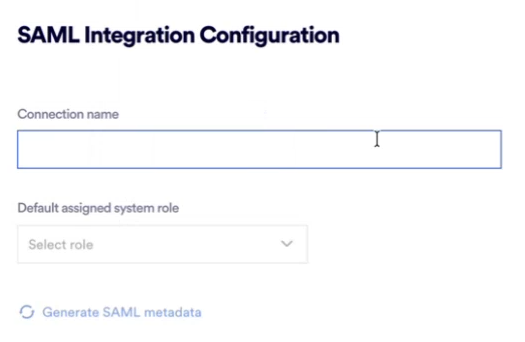
-
In Connection name, enter a name for the configuration. The name that you enter is currently not used by the system.
-
From the "Default assigned system role" list, select an admin-role. This admin-role will be assigned to new admin-users and to existing SAML admin users each time they sign in to FortiMail Workspace Security - unless various roles are assigned [see Step 4: Assigning admin-user roles to new admin-users below].
-
Click Generate SAML metadata.
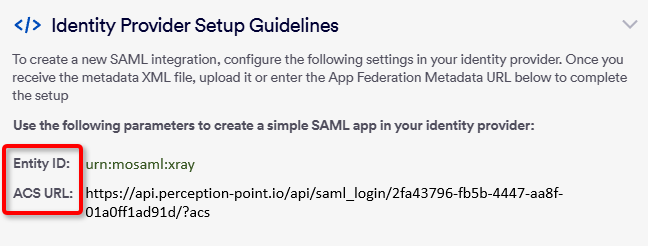
FortiMail Workspace Security will display values for the following parameters:
-
Entity ID
-
ACS URL
You'll need to enter these parameters in Step 2 below.
-
Step 2: Configuring your identity provider
-
In your identity provider, create a new, simple SAML app.
-
In your identity provider, for the new app, enter the two parameters that were displayed in Step 1 above - Entity ID and ACS URL.
Note: You can click the Copy to Clipboard icon [
 ] on the right of each parameter to copy the required values to the clipboard. Hover over the parameter to display the Copy to Clipboard icon [].
Your identity provider will generate an .xml file that contains the metadata that is required in Step 3 below.
Step 3: Configuring the metadata source
After you have created and configured the simple SAML app, you'll need to provide some metadata about your new SAML app to FortiMail Workspace Security. The required information is contained in the metadata .xml file that is generated by your identity provider.
-
In the SAML Integration Configuration pane that opened in Step 2, under "Identity provider metadata source" - select either:
-
File: and then drag the generated .xml file, or locate and upload the file
- or -
-
URL: and specify the URL where the generated .xml file is located.
-
Step 4: Assigning admin-user roles to new admin-users
|
Note: This step is optional. |
In Step 1 above, you configured the default admin-user role that is assigned to SAML admin users.
However, you can configure FortiMail Workspace Security so that when a new admin-user is added to FortiMail Workspace Security via the IdP integration, the new SAML admin-user will be automatically assigned a specified admin-user role - and not necessarily the default role. The admin-user role that is assigned is based on a specified attribute of the user. For example, you could assign the Viewer user role to new users from the "Sales" group, and the Controller user role to new users from the "IT" group. For details on the available admin-user roles, see About admin-user roles.
|
Note: The "user-role assigning functionality" described above affects new SAML admin-users and existing SAML admin users as well. Each time an existing SAML admin user signs in to FortiMail Workspace Security, the role of the admin-user will be set to the specified role. |
To enable this automatic assignment of admin-user roles to occur, in your SAML app you'll need to create a new attribute for each user role. Then perform the following:
-
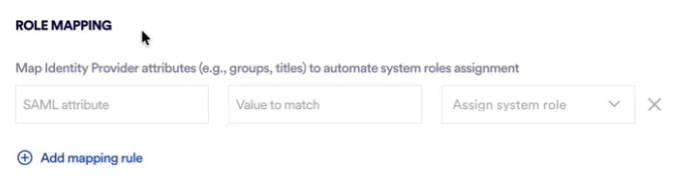
In the SAML Integration Configuration pane that opened in Step 2, under "Role Mapping", click "Add mapping rule".
-
Enter the following information for each attribute value:
-
Attribute name [Group name]
-
Attribute value [Object ID]
-
User role in FortiMail Workspace Security
-
-
Perform the above 2 steps until you have added all the required mapping rules.
-
Click Save to save the configuration.
Step 5: Validating the SAML integration
|
Note: You can simultaneously use standard [auth0] and SAML for authorization in your organization. This enables you to initially assign only a single admin user for SAML authorization - while maintaining standard authorization for all other admin users. This in turn, enables you to test that the SAML integration is working as expected, specifically for a single admin user, before rolling-out the SAML integration to all admin users in the organization. |
After you have saved the integration configuration, you'll need to test the integration. This will perform a "handshake validation" - thereby enabling the SSO functionality for your users.
|
If your IdP provides a "Test" button [For example, Microsoft Entra ID] |
|||
|
|||
|
If your IdP doesn't have a "Test" button [For example, Okta or Google Workspace] |
|||
|
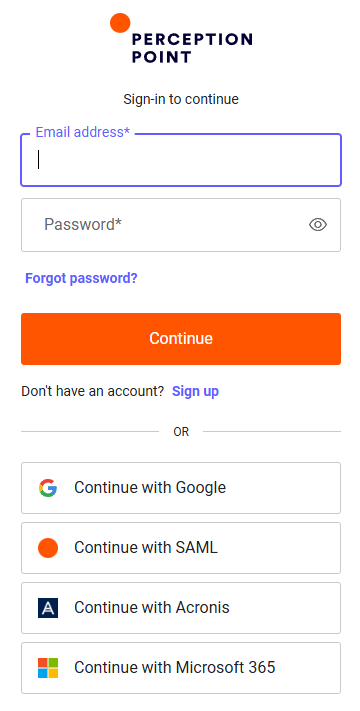
Perform a manual validation by opening the following URL in an Incognito window and then attempting to log in via your SSO account. After the test succeeds, admin users will be able to use the URL above to access FortiMail Workspace Security.
|
|||
SAML integration status
The SAML configuration can have any of the following statuses:
|
Not configured |
Step 1 above has not yet been completed. |
|
Pending IdP metadata upload |
Step 1 above has been completed. |
|
Active |
The integration is now active. |
Forcing SAML sign-in
It is possible to configure FortiMail Workspace Security so that all admin-users will be forced to use SAML to sign-in to FortiMail Workspace Security. The standard [non-SAML] sign-in procedures won't be available, and non-SAML admin-users won't be able to sign-in to FortiMail Workspace Security.
To force SAML sign-in to FortiMail Workspace Security, you'll need to create a group of admin-users in your identity provider, and give these users the ability to access FortiMail Workspace Security. FortiMail Workspace Security Support will then need to enable forced-SAML-sign-in for your organization.
For implementation details and assistance, contact FortiMail Workspace Security Support [support@perception-point.io].
|
Note If your organization is configured to force users to sign-in to FortiMail Workspace Security using SAML, then it is not possible to add [invite] new admin-users via FortiMail Workspace Security. [The Add User button won't appear - see Adding or inviting new standard admin-users.] Instead, a new admin-user needs to sign-in to FortiMail Workspace Security using the "Continue with SAML" option, or via the SAML app. The first time a new admin-user successfully signs-in to FortiMail Workspace Security, a corresponding new admin-user will be created in FortiMail Workspace Security. |
Creating admin-users after SAML integration
After setting up SAML integration for SSO, new admin-users are automatically created in FortiMail Workspace Security when the admin-users first sign-in to FortiMail Workspace Security. Each new admin-user will have the "SAML" connection type - that is visible in the Settings > Admin Users page.
-
If SAML sign-in is forced in your organization, it will not be possible to add new admin-users via the FortiMail Workspace Security interface.
-
If SAML sign-in is not forced in your organization, it will still be possible [if necessary] to add new admin-users via the FortiMail Workspace Security interface. Each new admin-user that is created in this manner will have the "Standard" connection type - that is visible in the Settings > Admin Users page.
Deleting duplicate admin-users
After setting up SAML integration for SSO, new admin-users are automatically created in FortiMail Workspace Security when the admin-user first signs-in to FortiMail Workspace Security. Each new admin-user will have the "SAML" connection type - that is visible in the Settings > Admin Users page.
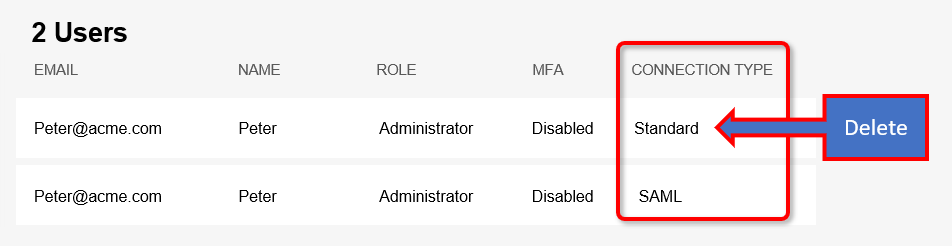
If the admin-user existed in FortiMail Workspace Security before SAML integration was set-up, then there will be duplicate entries for the admin-user:
-
The new entry will have the "SAML" connection type
-
The old entry will have the "Standard" connection type
It is recommended that you delete the old "Standard" connection type admin-user.
Updating or renewing a SAML/SSO certificate
When a SAML/SSO certificate needs to be updated, you'll need to use your identity provider to first generate a new certificate, and then regenerate [renew] the .xml metadata file that contains the new certificate. Then perform the procedure below:
To update a certificate:
-
In FortiMail Workspace Security, in the left navigation menu, select Settings > Account.
-
Scroll down to the SAML Integration section.
-
Click Configure to edit the settings.
The SAML Integration Configuration pane will open.
-
Under "Identity provider metadata source" - select either:
-
File: and then drag the newly generated .xml file, or locate and upload the file
- or -
-
URL: and specify the URL where the newly generated .xml file is located.
-
Click Save.
-
See also:
