|
Important:
|
This page includes:
About connecting FortiMail Workspace Security with FortiCloud - existing integrations
FortiCloud gives you one-stop access to all your Fortinet cloud services - including FortiMail Workspace Security and its associated assets. To access these assets, you'll need to:
-
Create a FortiCloud account - if you don't already have one
-
Register your FortiMail Workspace Security assets in the account
-
Connect your FortiMail Workspace Security organization with your FortiCloud account
By connecting your FortiMail Workspace Security organization with FortiCloud account, you enable the required billing to be performed through FortiCloud.
Prerequisites
Before you begin the registration process below, make sure that you have the following available:
-
The email address [Master Account address] that will be used to register FortiMail Workspace Security with FortiCloud.
-
The registration code [serial number] that is used to identify and then register your FortiMail Workspace Security assets with FortiCloud.
You should have received both of these details from your FortiMail Workspace Security account manager, typically by email.
|
Note: If you haven't received these details, contact your FortiMail Workspace Security account manager before continuing with the registration process. |
The registration and connection procedure
The registration and connection procedure includes the following steps:
Each of these steps is described below.
Step 1: Creating a FortiCloud account
If you don't already have a FortiCloud account, perform the procedure below. If you already have a FortiCloud account, continue with Step 2: Registering FortiMail Workspace Security assets below.
-
Go to the following URL to open the "Welcome to Fortinet" page: https://www.fortinet.com/welcome
-
In the top-right corner, click "FortiCloud Login".
-
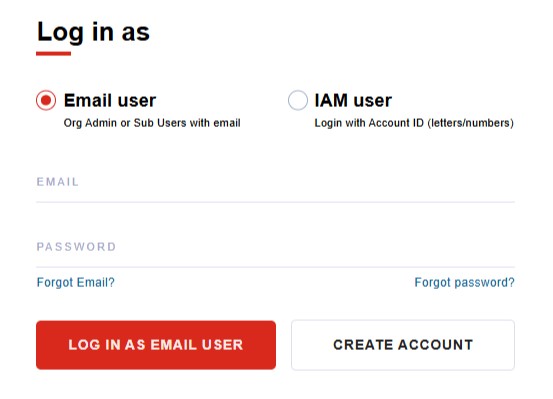
In the "Log in as" box, make sure that "Email user" is selected, and then click "Create Account".
-
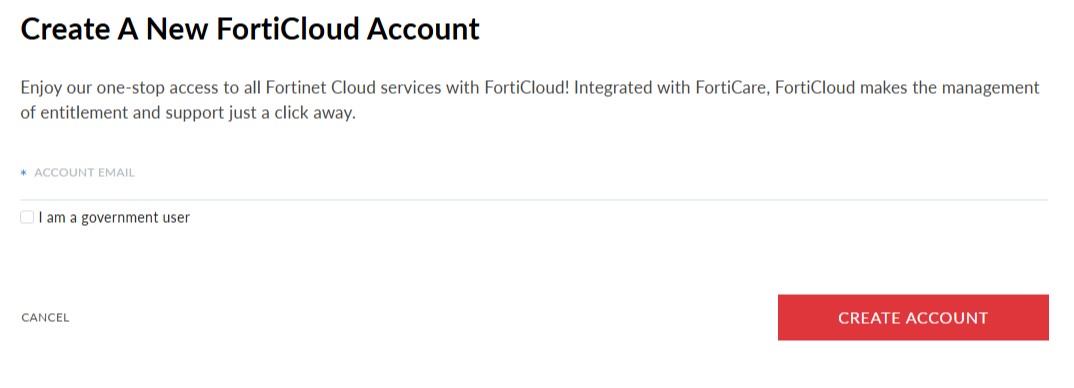
In the "Create a New FortiCloud Account" page, enter the email address that will be used for the registration. You should have received this email address from your FortiMail Workspace Security account manager.
-
Click "Create Account". This will create a FortiCloud account for you, and then log you in to FortiCloud.
Step 2: Registering FortiMail Workspace Security assets
After you have created a FortiCloud account, you are ready to register your FortiMail Workspace Security assets in FortiCloud.
-
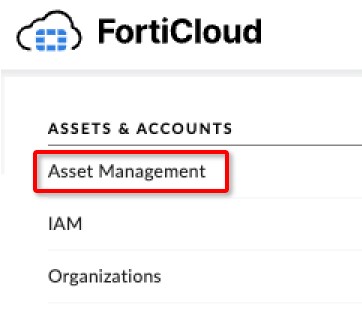
In the FortiCloud home page, under "Assets & Accounts", click "Asset Management".
-
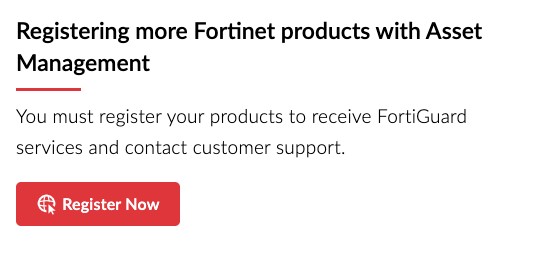
In the "Registering more Fortinet products with Asset Management" box, click "Register Now".
-
Enter the "Registration Code". This is the Serial Number that you should have received from your FortiMail Workspace Security account manager.

-
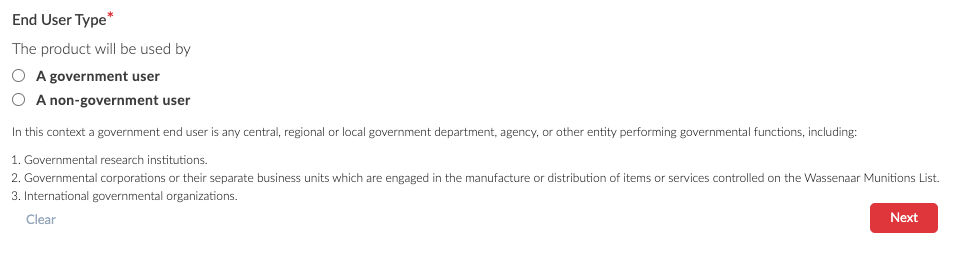
Under "End User Type", select "A non-government user" [if this is correct] and then click Next.
-
Under "Registration Confirmation", click "New Registration".
-
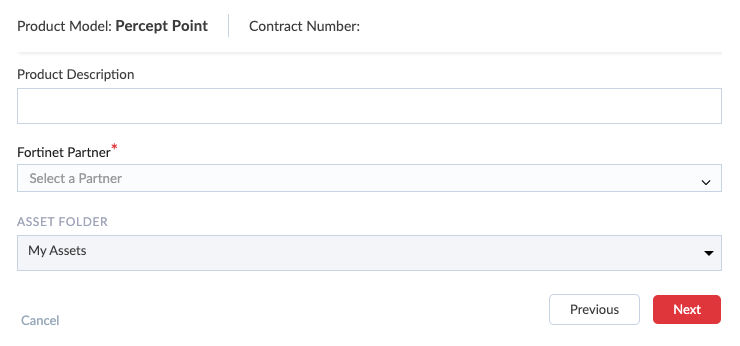
Enter a Product Description. This is typically the name of your organization, as it appears in FortiMail Workspace Security.
-
From "Fortinet Partner", select Unknown, and then click Next.
-
In the "Fortinet Service Terms & Conditions" page, select the "I have read, understood and accepted the contract stated above" check box, and then click Next.
-
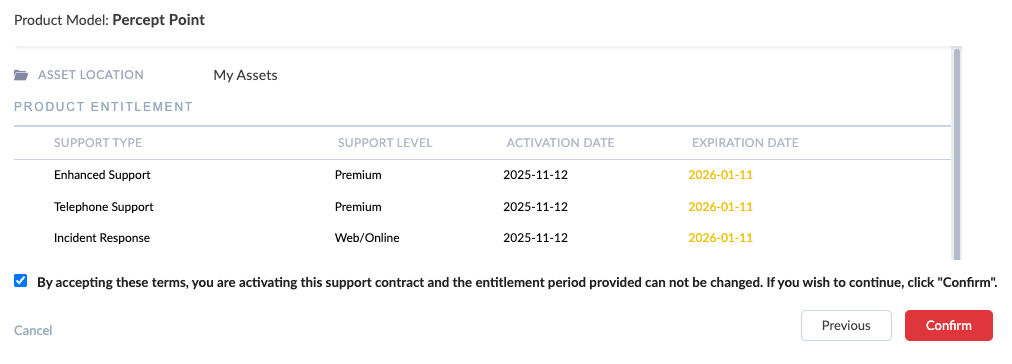
The Product Model will appear as "Percept Point". The "Product Entitlement" is a list of the FortiMail Workspace Security assets that are included in the Registration Code that you provided. Review the "Product Entitlement", select the check box for accepting the terms, and then click Confirm.
-
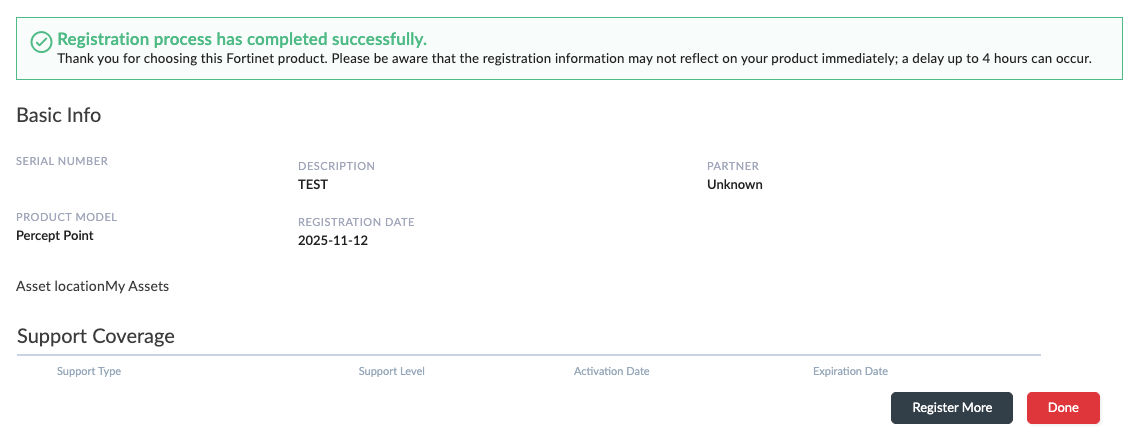
The registration process is now complete. Review the registration information, and then click Done.
-
Your FortiCloud Product List is displayed.

Step 3: Connecting your organization to FortiCloud
When you have a FortiCloud account, and you have registered your FortiMail Workspace Security assets in FortiCloud, you are ready to connect your existing FortiMail Workspace Security organization with FortiCloud. This can be done directly from the FortiMail Workspace Security console, without requiring any support from the FortiMail Workspace Security Support team or your account manager.
To connect your organization to FortiCloud
-
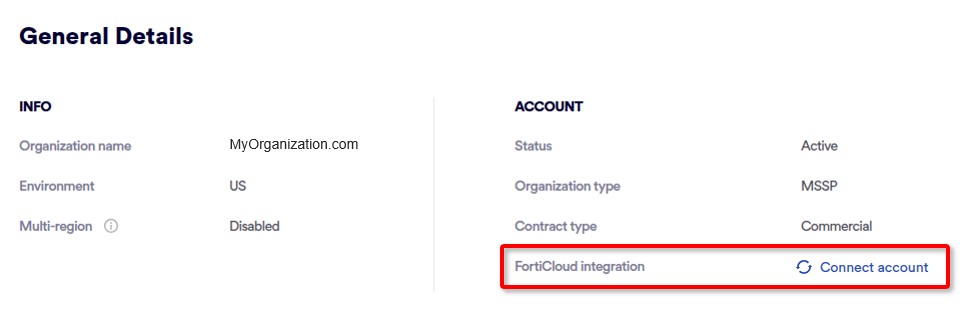
In FortiMail Workspace Security, click Settings > Account.
-
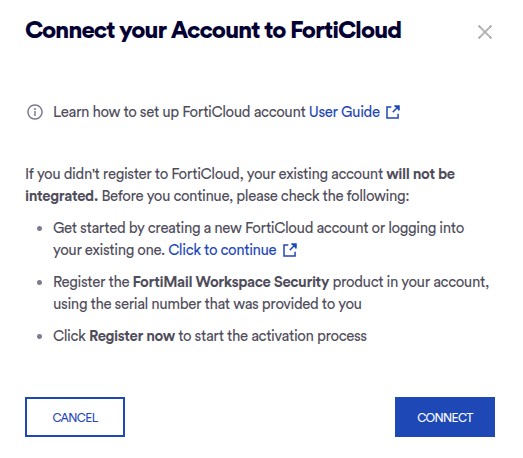
Under General Details, click FortiCloud integration > Connect account. The "Connect your account to FortiCloud" dialog box will appear.
-
Click Connect.
You will be redirected to the FortiCloud login page.
-
Login to FortiCloud - if you are not already logged-in.
You will be redirected back to FortiMail Workspace Security, and a success or failure message will be displayed.

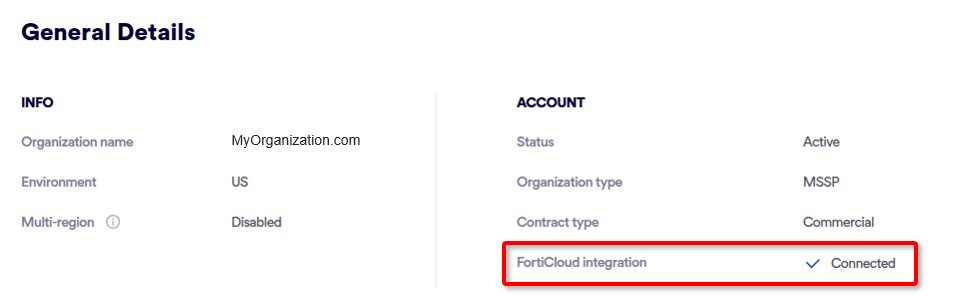
Under "General Details", "FortiCloud integration" will now be "Connected".
Now that your organization is connected to FortiCloud, you can access FortiMail Workspace Security either:
-
directly by using the same log-in method that you have used until now. For details, see Accessing FortiMail Workspace Security directly [SSO] below.
- or -
-
via FortiCloud. For details, see Accessing FortiMail Workspace Security via FortiCloud below.
-
Accessing FortiMail Workspace Security via FortiCloud
Now that you have connected your FortiMail Workspace Security organization with FortiCloud, you'll be able to access FortiMail Workspace Security either:
-
directly
- or -
-
from within FortiCloud
Make sure to add the required admin users to FortiCloud in order to give them access to FortiMail Workspace Security via FortiCloud. For details, see FortiCloud admin users.
To access FortiMail Workspace Security via FortiCloud:
-
Login to FortiCloud.
The log-in procedure varies depending on whether you are an "email" [master] user or an "IAM" user:
Email users
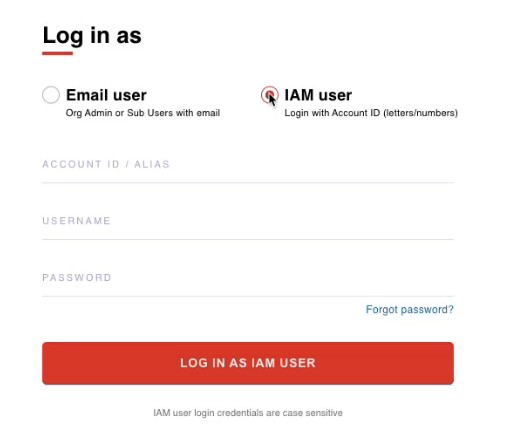
IAM users
-
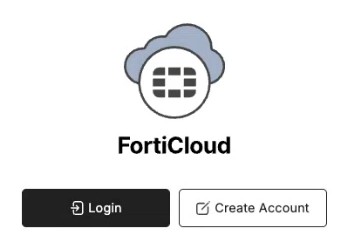
Open forticloud.com in your browser.
-
Click Login.
-
Enter your username and password, and then click "Log in as email user.
-
Open forticloud.com in your browser.
-
Click Login.
-
Click "IAM user".
-
Enter:
-
Account ID: The account in which the user was created.
-
Username:
-
Password:
-
-
Click "Log in as IAM User".
-
-
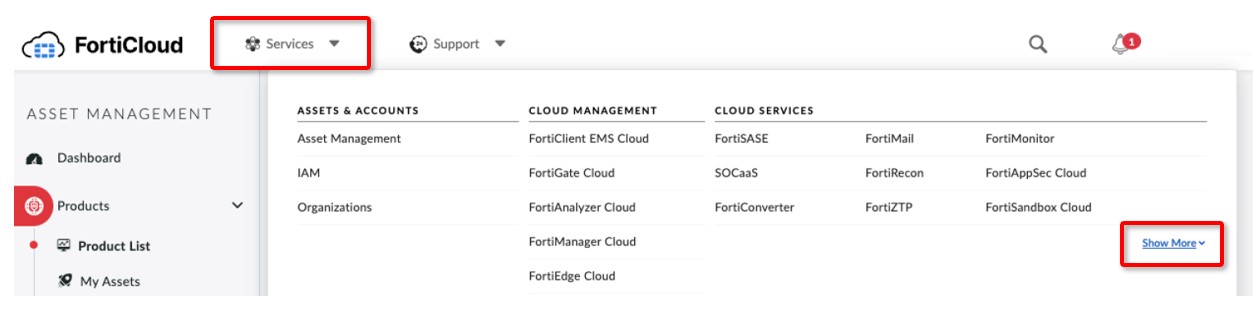
In FortiCloud, on the right of the FortiCloud header, click Services, and then click "Show More", on the right-side.
-
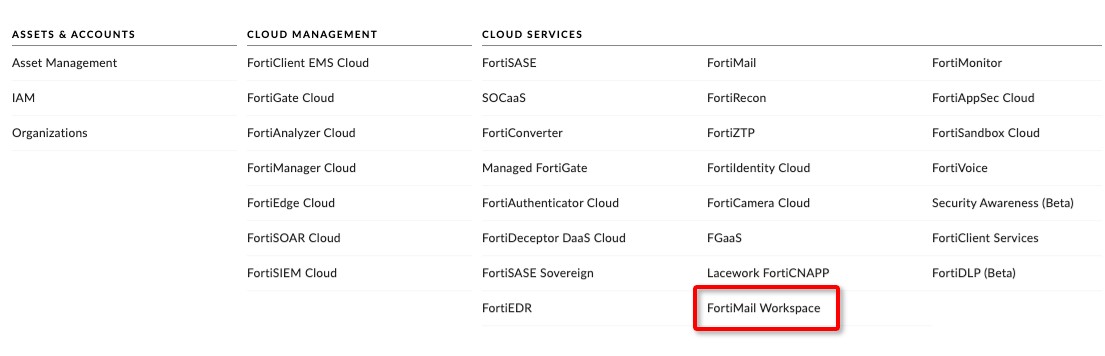
Locate and then click "FortiMail Workspace".
-
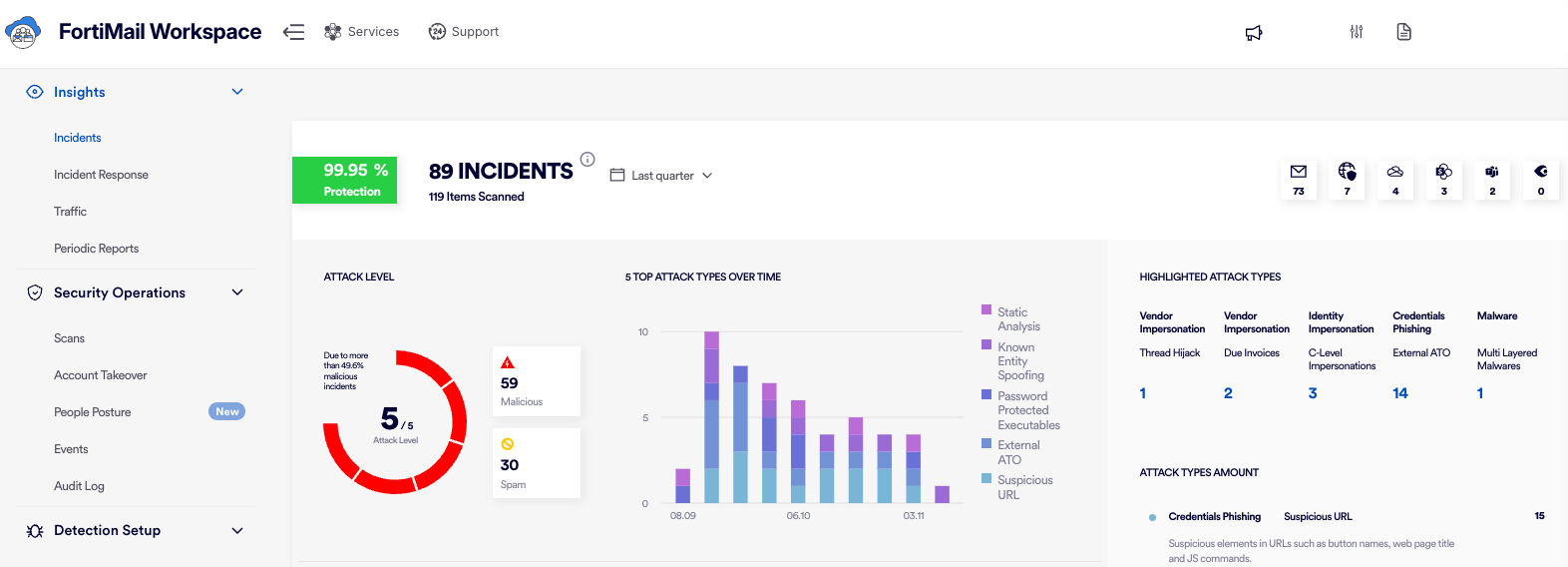
This will open FortiMail Workspace for your organization - in a new tab in your browser.
Accessing FortiMail Workspace Security directly [SSO]
Now that you have connected your FortiMail Workspace Security organization with FortiCloud, you'll be able to access FortiMail Workspace Security directly [SSO] or from within FortiCloud.
To access FortiMail Workspace Security directly [SSO]:
-
Enter the following URL into your browser: https://xray.perception-point.io
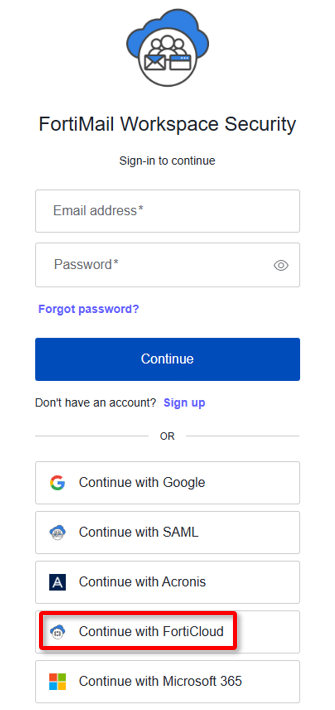
The FortiMail Workspace Security sign-in pop-up will appear.
-
Click Continue with FortiCloud.
If you are already signed-in to FortiCloud, then FortiMail Workspace will open.
If you aren't already signed-in to FortiCloud, then you'll need to first sign-in before FortiMail Workspace opens.
See also:
