This page includes:
About remote logging
The remote logging functionality lets you gather various logs from sources inside FortiMail Workspace Security, and send the logs to a SIEM solution, such as FortiSIEM, Splunk, or QRadar. This enables you to use your SIEM solution to perform tasks such as flagging and monitoring emails that have been found to be malicious and then quarantined. It also enables you to maintain a single source of all your FortiMail Workspace Security logs.
-
All messages are sent using the Syslog protocol - in CEF format.
-
There are 3 available communication protocols for sending FortiMail Workspace Security messages: TLS, UDP, and TCP.
-
Make sure to allowlist the sending IPs in your firewall. For details, see Allowlisting the sending IPs below.
Configuring remote logging
When you configure remote logging for an organization, make sure to perform the configuration on the child organization, not on the parent organization. Remote logging configurations that are set on a parent organization are not propagated to the child organizations.
When you configure remote logging, you'll need to specify:
-
Details about the destination server
-
The communication protocol
-
The message triggers
After configuring remote logging, make sure to allowlist the sending IPs in your firewall. For details, see Allowlisting the sending IPs below.
To configure remote logging:
-
In FortiMail Workspace Security, in the left navigation menu, select Settings > Account.
-
Scroll down to the Remote Logging section.
-
Click Configure to edit the settings.
The Remote Logging Configuration pane will open.
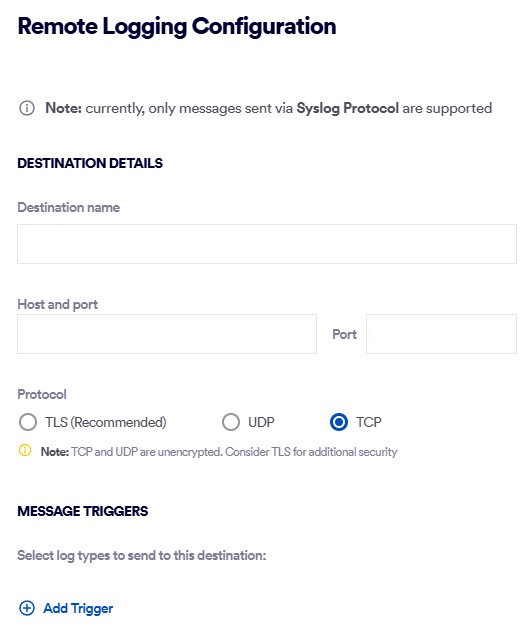
Destination Details
Destination name
Specify a name that identifies the server to which the logs will be sent.
Host and port
The IP address of the server to which the logs will be sent, and the associated port on that server.
Protocol
Select the communication protocol that will be used to send the logs.
Note:
-
UDP and TCP are not encrypted. Therefore, using TLS is recommended.
-
All messages are sent using the Syslog protocol - in CEF format.
-
TLS:
-
Server Certificate: Drop or specify the associated server certificate.
Note: Although most file formats are supported, we recommend using certificates in PEM format.
-
If required, enable client authentication.
-
Client Certificate: Drop or specify the associated client certificate.
Note: Although most file formats are supported, we recommend using certificates in PEM format.
-
Client Key: Drop or specify the associated client key.
-
-
-
UDP: No further configurations are required.
-
TCP: No further configurations are required.
Message Triggers
Category
[Log types]
Message triggers are the events that will trigger an event to be generated and then sent to the specified destination server.
-
When necessary, click Add Trigger to add and configure an additional trigger.
Email scan
After selecting Email scan, select one or more scan verdicts that will trigger an email-type event to be generated and then sent to the specified destination server.
Note: You can configure only a single "Email scan" trigger.
 What's included in each "Email scan" message
Meta data
Description
Example
date
The date on which the email was received
2025-09-15
time
The time at which the email was received
08:50:43.638
eventtime
10-digit epoch timestamp of the time that the email was received
1757926243
tz
The time zone of the receiving server
+0000
type
The channel that performed the scan
email
to
The address of the email recipient
philip@domain-to.com
from
The sender's email address
mark@domain-from.com
domain
The receiver domain
domain-to.com
verdict
A 3-letter verdict of the scan
CLN
subject
The subject of the email
Urgent reservation
message_id
The "message ID" inside FortiMail Workspace Security
452551_1_d583e45c-a1ec-4a08-a0eb-0e56bb2e5903_20250925
source_ip
The IP address from which the email was received
1.2.3.4
internet_message_id
The unique identifier assigned to the email
<000000000000123456ab891234@google.com>
scan_layers
The scan layers involved:
-
Anti Phishing
-
Anti Spam
-
BEC
-
Fraud
-
Identity Impersonation
-
Policy
-
Threat Intelligence
Anti Spam
delivery_status
See Scan Actions
Quarantined
security_analysis
Scan warnings or reasons for the verdict
"Zero correlation between sender name and mailbox"
return_path
The return path that is specified for the email
noreply@mydomain.com
Note that the content of each scan event is not configurable.
Sample email-based syslog message
{
'date': '2026-01-20',
'time': '15:24:49.037',
'eventtime': 1768922689,
'tz': '+0000',
'type': 'email',
'to': 'laviolette@test.com',
'from': 'nmh@example.com',
'domain': 'test.com',
'verdict': 'SPM',
'subject': 'An Anti-Oppressive Model for Whole Person Care',
'message_id': '<scan ID>',
'source_ip': '198.2.139.174',
'internet_message_id': '<eb2eef2fef08c818e20903afb.7e25caee0f.20260120151451.9bdadfaef5.8b80284f@mail174.atl221.rsgsv.net>',
'scan_layers': 'Anti Spam',
'delivery_status': 'Sent',
'security_analysis': 'Zero correlation between sender name and mailbox, From address: "nmh@example.com" not equal reply to: "<us5-c4116e9f97-e7fbd918a9@inbound.mailchimpapp.net>", SPF check FAILED for "example.com"',
'return_path': 'bounce-mc.us5_242697614.5136901-7e25caee0f@mail174.atl221.rsgsv.net'
}
Audit Log
After selecting Audit scans, select one or more actions that will trigger an audit-log-type message to be generated and then sent to the specified destination server. This enables you to monitor actions that are performed by admin users in FortiMail Workspace Security. The available actions are the Actions that appear in the Audit log. [See Audit log]
Note:
-
You can configure only a single "Audit scans" trigger.
-
You can select "All current and future triggers". This ensures that all triggers that are added in the future to the set of available triggers will automatically be added as selected triggers.
What's included in each "Audit log" message
Meta data
Description
Example
ID
Unique identifier for the audit event.
2d3c8e24-39a7-4719-846e-712a9dc36ee9
Timestamp
The exact time the event was logged.
2026-02-16 8:26:19
Environment
The specific environment code where the action occurred.
1
Organization ID
The ID of the organization associated with the event.
88620
Performing User
Details of the user who initiated the action, including their organization and email.
{'name': 'Peter Goodman', 'email': 'peter.goodman@my-org.com'}
Action Type
The high-level category of the operation performed.
handle_scan or ui_action
Action Description
A human-readable summary of what took place.
Investigation Handled on email with ID...
Action Extra
Context-specific metadata that changes based on the Action Type.
{'verdict': 'SPM', 'sub_action_type': 'investigation-handled-email', ...}
Created At
The system creation timestamp for the log entry.
2026-02-16 8:26:19
-
Testing the remote logging configuration
After you have configured remote logging, you can send a test message to check if the configured remote server is able to receive a test message from FortiMail Workspace Security. The test message that is sent contains the following text: "FortiMail Workspace Test Event"
To send a test message:
-
In FortiMail Workspace Security, in the left navigation menu, select Settings > Account.
-
Scroll down to the Remote Logging section.
-
Click Send sample log.
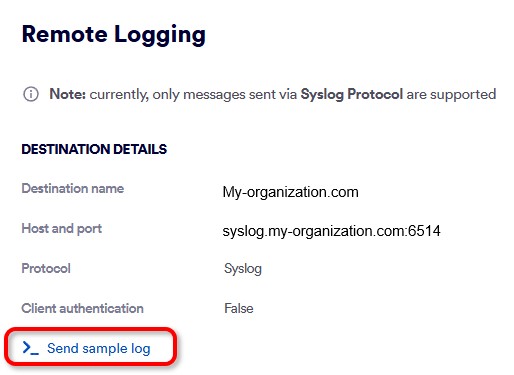
A test message will be sent to the configured destination. The test message that is sent contains the following text: "FortiMail Workspace Test Event"
Note: The Send sample log button may be inactive for about 3 minutes after a change is made to the destination configuration.
Allowlisting the sending IPs
Make sure to configure your security policies to permit traffic from the IP addresses that are listed below.
|
Note: Select the correct set of IP addresses for the environment of your organization. What's the environment of your organization
|
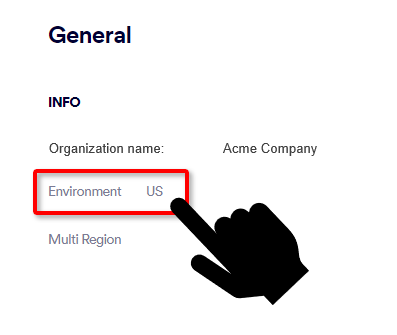
|
For US environments |
For EU environments |
For AUS environments |
|
|---|---|---|---|
|
|
|
Disabling remote logging
For assistance with disabling remote logging, contact FortiMail Workspace Security Support [support@perception-point.io].
See also:
