This page includes:
About the audit log
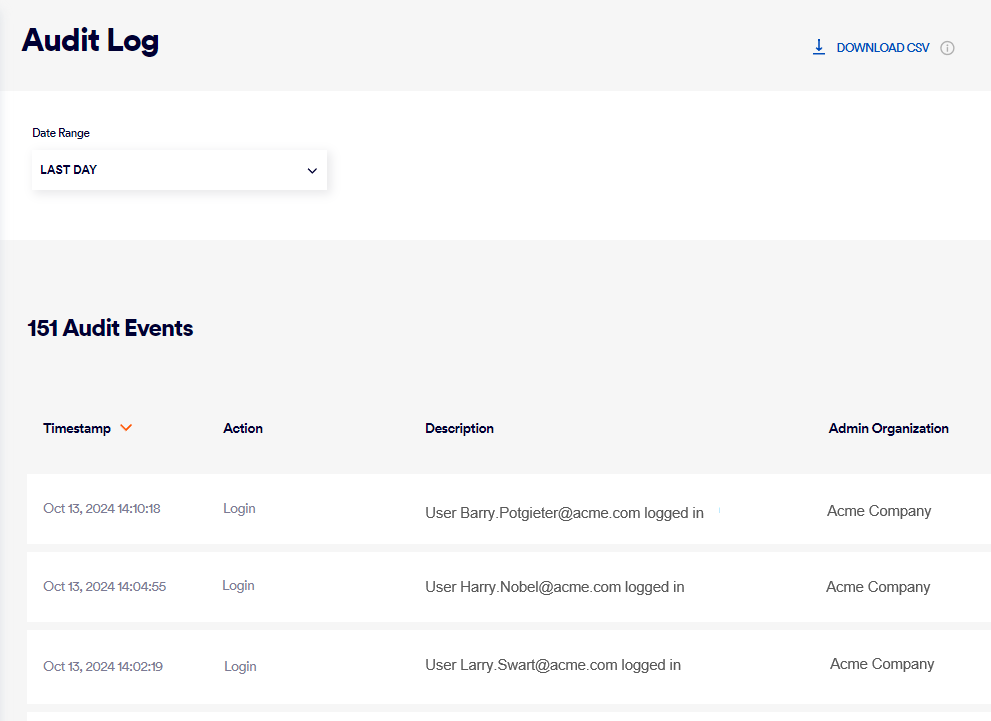
You can view the FortiMail Workspace Security audit log. The audit log lets you see what actions were performed by your admin users - and by the FortiMail Workspace Security IR Team - in FortiMail Workspace Security, in your organization. Some actions that are performed by the system - with a System label - are also recorded in the Audit log. The audit log includes actions such as changing a verdict, previewing an email, and viewing a screenshot. The audit log enhances transparency by enabling you to see the actions that were performed on the data in your organization.
-
You can use the filter feature in the audit log to show all the actions that include the specified text in the Description or Action columns of the Audit log. For example, you could look for events performed by a specific user, "John".
-
Data retention: Data in the audit log is maintained for 180 days.
|
The Audit Log page is available to admin users with the "Administrator" role only. |
Showing the audit log
To show an audit log:
-
In FortiMail Workspace Security, in the left navigation menu, select Security Operations > Audit Log.
All actions that were performed in the last day will be shown.
-
Use the Date Range selector and the Search feature [see below] to change the list of displayed actions.
Searching the audit log
When you use the Search functionality to filter the log entries that are displayed, the following fields are included in the search:
-
Action
-
Description
-
Admin
Downloading the audit log
You can download the audit log - in csv format. This is typically done for investigation purposes. The downloaded file will include all events and data currently displayed in the audit log - based on the current Date Range and Search settings.
|
Note:
|
To download the audit log:
-
In FortiMail Workspace Security, in the left navigation menu, select Security Operations > Audit Log.
-
Use the Date Range selector and the Search feature to change the list of displayed actions.
-
Click Download CSV - in the top-right corner.
Action types
Below are the available action-types that may appear in the audit log, in alphabetic order.
|
Note:
|
|
|
Available action types |
|
|---|---|---|
|
|
|
|
See also:
