|
Note:
|
The following procedure describes how to use Google Workspace or Chrome Browser Cloud Management to deploy the extension. In some configurations, the extension will be deployed and activated without requiring the users to enter any credentials, such as an email address.
The procedure applies to Google Chrome, on any operating system.
|
Note:
|
Deployment procedure
To deploy the extension via Google Workspace, follow these steps:
|
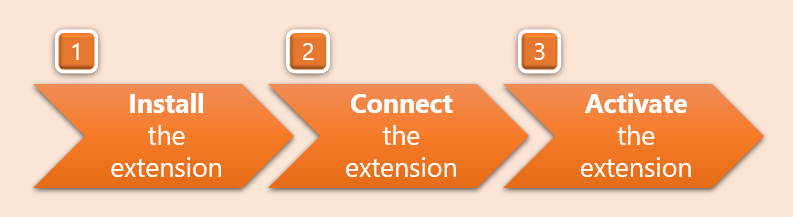
Step 1: Installing the extension |
For other extension deployment options, see Deploying the extension [Managed deployment].
Step 1: Installing the extension
In the Google Workspace admin console
-
Use an administrator account to sign-in to the Google Workspace admin console.
-
Go to Devices > Chrome > Apps & extensions > Users & browsers.
-
Under "Organizational units", select the organizational unit for which you want to force-install the extension.
-
Click the "+" icon [
 ] on the bottom-right, and then select "Add Chrome app or extension by ID" [
 ]
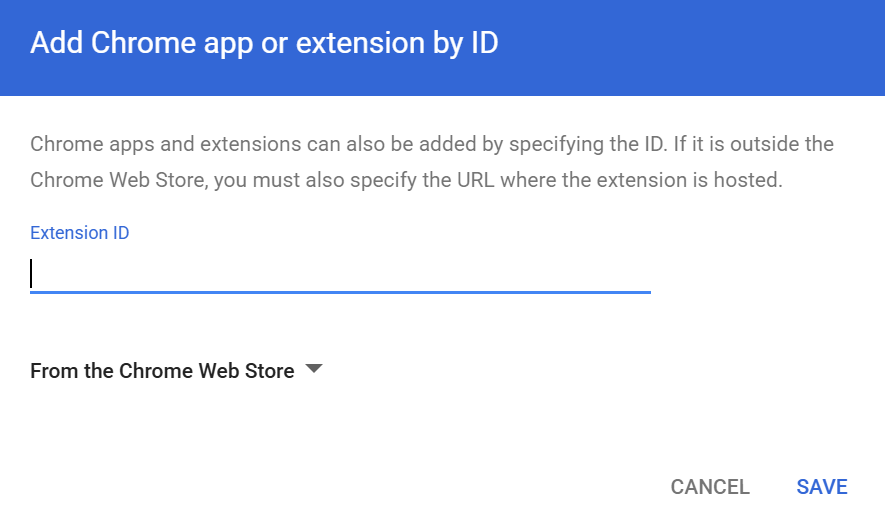
]The "Add Chrome app or extension by ID" dialog box opens.
-
Copy and paste the following Google Chrome extension ID:
kpehlcnleoaejbmmgncofcgpjnojlfbn
-
Click Save.
-
Under "Installation policy", select "Force install + pin to browser toolbar"
-
Select "Permissions and URL access > Allow all permissions.
Step 2: Connecting the extension
In the FortiMail Browser Security console
-
Download the required organization token from the FortiMail Browser Security console.
-
In the FortiMail Browser Security console, click Settings > Deployment options.
-
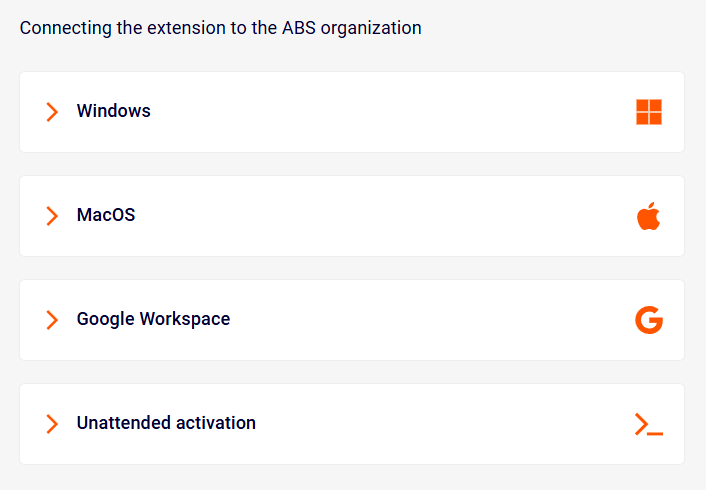
Locate the "Connecting the extension to the FortiMail Browser Security tenant" section.
-
Click Google Workspace, and then click "Download extension policy".
The perception-point-organization-token.txt file will be downloaded to your computer.
-
In the Google Workspace admin console
-
Under "Policy for extensions" for the managed Fortinet Browser Security extension, click the Upload button [
 ] and then select and upload the perception-point-organization-token.txt file that you downloaded from the FortiMail Browser Security console in the previous step.
 -
Click Save on the top-right of the page.
|
Note:
|
 .
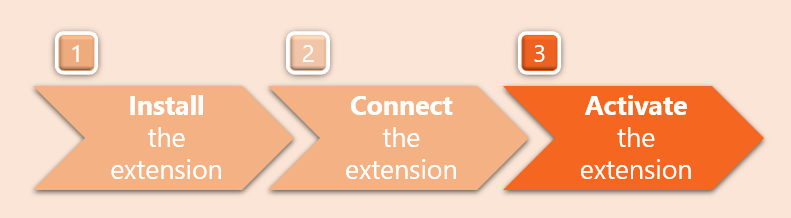
.Step 3: Activating the extension
|
Note: Unattended activation is NOT compatible with managed deployments via Google Workspace. It is recommended that you use the "SAML" activation method. |
For details on activating the extensions, see Step 3: Activating the extension on endpoints.
See also:
