This page includes:
About connecting "other" email services
You can integrate FortiMail Workspace Security with various email services. This enables FortiMail Workspace Security to protect all incoming mail from the integrated email services.
This page discusses how to connect FortiMail Workspace Security to an email service that is not Google Workspace, nor Microsoft 365, nor Microsoft Exchange. We will refer to these as "other" email services. These "other" email services include services such as cPanel, IMAP, Zimbra, and Zoho Mail.
-
The "other" integration method is not available to Pax8 customers.
Limitations
-
Integrations with all "Other" email services require an MX record change.
-
With the "Other" integration method, FortiMail Workspace Security will protect the entire domain - there is no option to specify which groups or mailboxes within the domain to protect [partial protection].
-
With the "Other" integration method, scanning of outbound emails is not available.
-
With the "Other" integration method, remediation is not available.
This means that if an email is initially assigned a clean verdict and then delivered into the recipient's mailbox, FortiMail Workspace Security will be unable to relocate [move] the email if the email is then assigned a malicious or spam verdict.
Additional requirements
-
The server must support 3rd-party MX records.
-
The server must have an IP-based allowlist mechanism.
If either of these requirements is not supported, the integration will not function properly and may result in email delivery issues.
|
Note: You can't configure FortiMail Workspace Security to protect personal Gmail accounts. FortiMail Workspace Security is designed exclusively for enterprise platforms such as Google Workspace and Microsoft 365. |
A bit more about integrating "other" email services
Onboarding process
-
Customer onboarding entails adding the domain name and verifying a TXT record in the system.
-
During the onboarding process, you'll need to add the next hop (MX record) so that FortiMail Workspace Security knows where to deliver the email after scanning.
Email flow overview
-
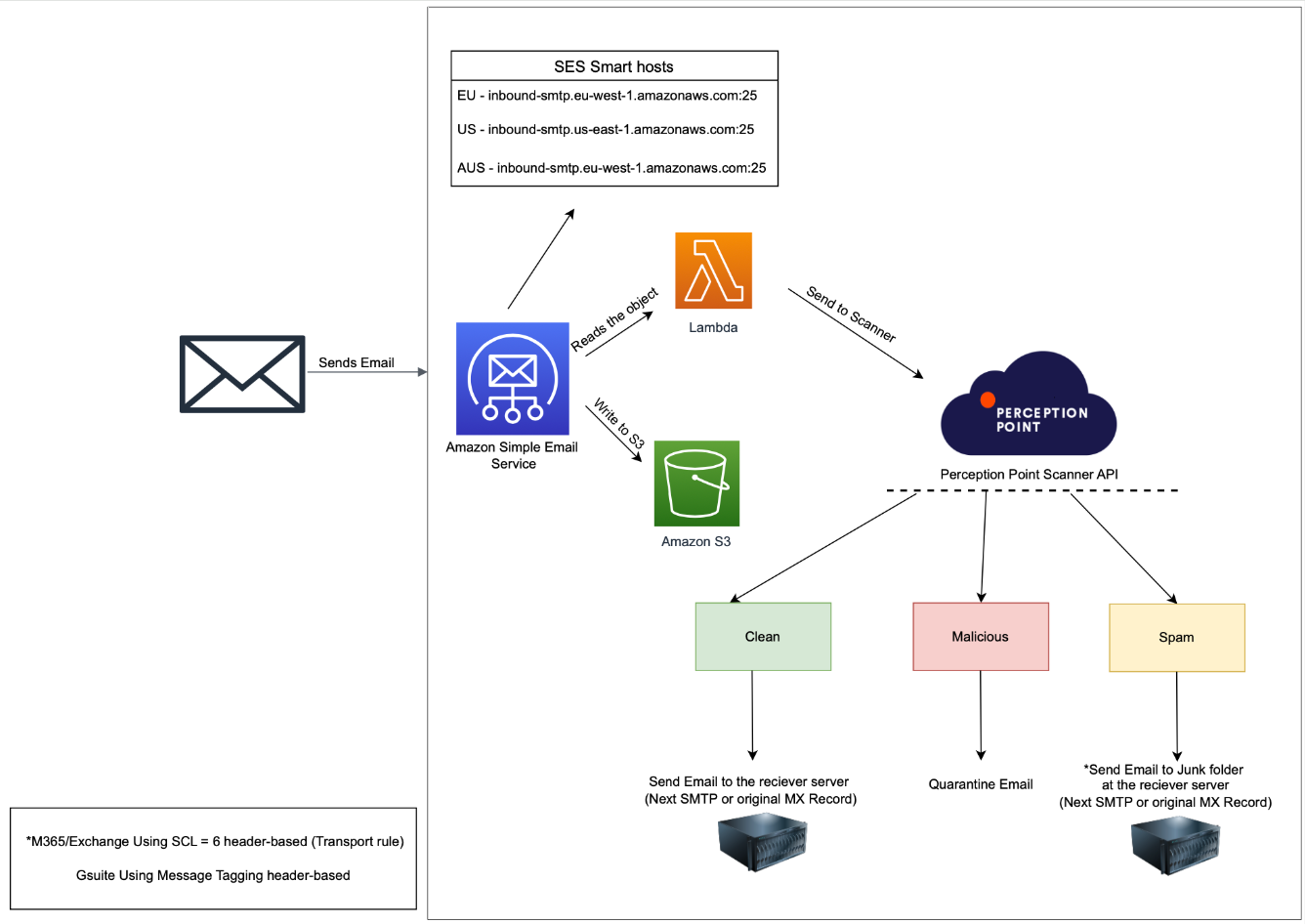
All inbound emails are directed straight to the FortiMail Workspace Security scanner upon arrival.
Scanning and response
-
Clean: Clean emails verified by FortiMail Workspace Security are sent back to the configured server (Next SMTP).
-
Spam: Emails identified as spam by FortiMail Workspace Security are sent back to the configured server (Next SMTP).
-
For servers utilizing header-based rules to redirect spam to the Junk Email folder, you can append the "X-PERCEPTION-POINT-SPAM: FAIL" header.
-
In Exchange 2013/2019, this can be accomplished through transport rules.
-
-
Malicious: Emails identified as malicious are blocked and are not forwarded to the next server.
|
Note: With the "Other" integration method, remediation is not available. This means that if an email was initially assigned a clean verdict, which was later changed to malicious, the email will not be removed from the user's Inbox. |
Maximum email size limitations
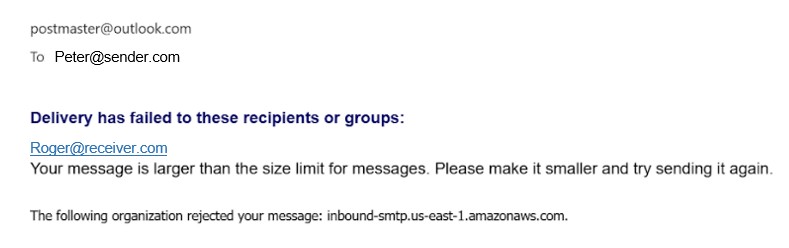
When using the "Other" integration method, FortiMail Workspace Security scans email messages up to a maximum size of 40 MB [including attachments]. If a message exceeds 40 MB, the email will not be sent, and a Non-Delivery Report (NDR) or bounce notification will be generated. This NDR will indicate that the message size limit was exceeded [for example: "552 Message is too long"]. The NDR will be sent to the sender [return-path address].
|
Note:
|
The onboarding procedure
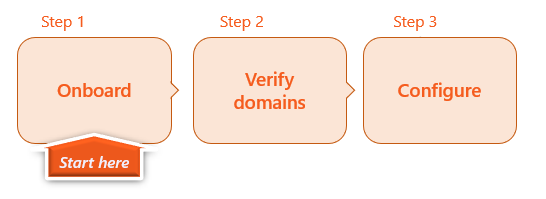
Perform the following procedures to integrate FortiMail Workspace Security with "other" email services:

Flow chart diagram
Hover your cursor over the graphic below to enlarge it 
See also:
