This section describes how to configure Okta as an identity provider.
- For general information about configuring identity providers, see Identity Provider [IdP] Integration - SSO [FortiMail Browser Security].
- For details on how to configure Entra ID as an identity provider, see Identity Provider [IdP] Integration - Entra ID [FortiMail Browser Security].
- For details on how to configure a generic identity provider, see Identity Provider [IdP] Integration - Generic [FortiMail Browser Security].
This procedure includes the following:
Step 1: Configure your identity provider

In this step, you'll give a name to the integration, and then copy configuration details from the FortiMail Browser Security console to Okta - your identity provider.
-
In the FortiMail Browser Security console, open the Settings > Identity provider integration page.
-
If no identity provider has been configured, click Configure identity provider.
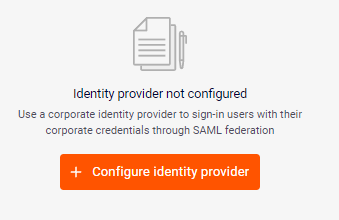
The first step of the wizard opens.
-
Enter a name for the provider integration, for example, "Acme - Okta"
-
In Okta, in the left navigation panel, select Applications > Applications.
-
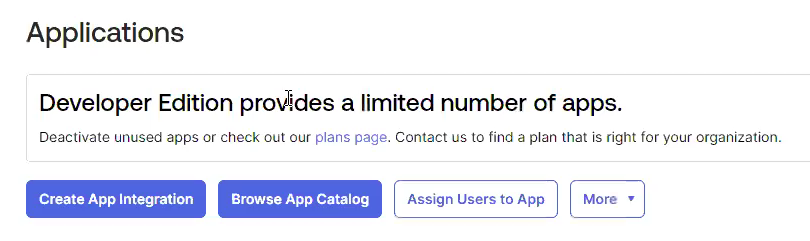
In the Applications page, click Create App Integration.
-
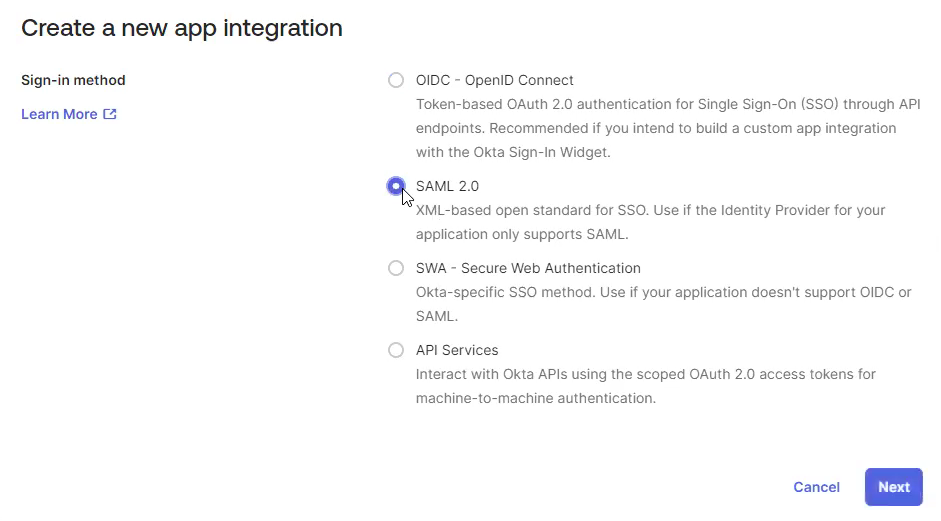
Under Create a new app integration, select SAML 2.0, and then click Next.
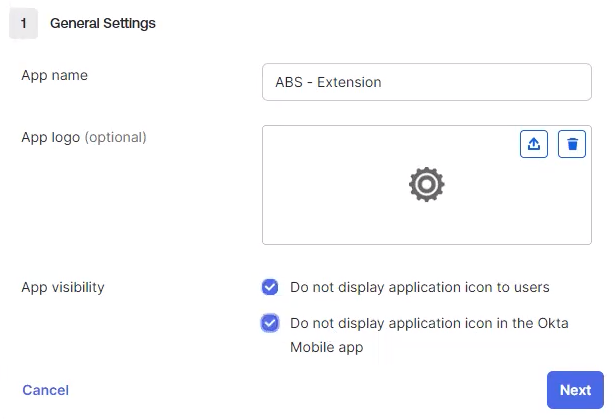
- In the Create SAML Integration, under "1 - General Settings":
Specify an App name, such as ABS Extension.
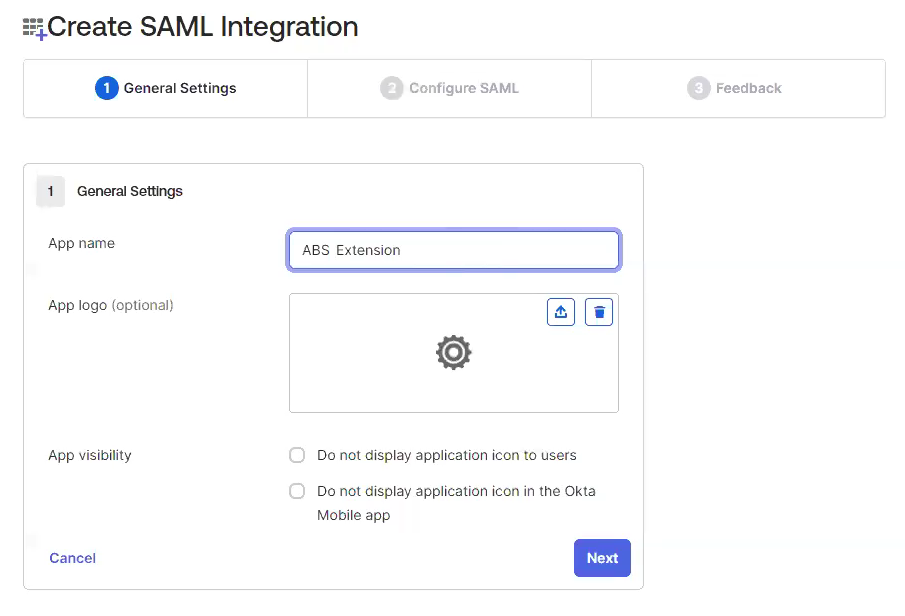
For App visibility, select both available check boxes, and then click Next.
-
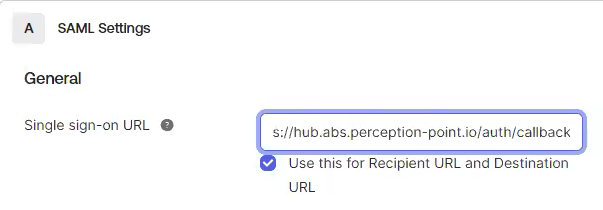
In the FortiMail Browser Security console, click the copy icon to copy the "Reply URL (Assertion Consumer Service URL)" to the clipboard.

-
In Okta, under A - SAML Settings > General, paste the clipboard contents into the "Single sign-on URL" field.
-
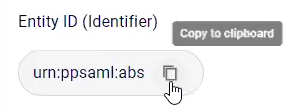
In the FortiMail Browser Security console, click the copy icon to copy the "Entity ID (Identifier)" to the clipboard.
-
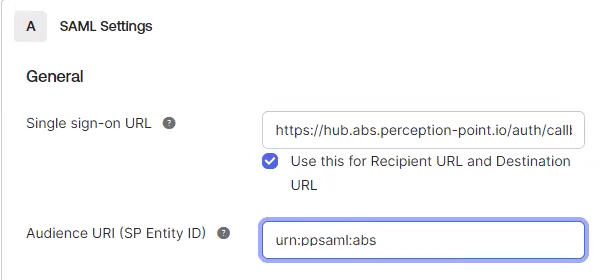
In Okta, paste the clipboard contents into the "Audience URI (SP Entity ID)" field.
-
In Okta, select Name ID Format > EmailAddress.
-
In the FortiMail Browser Security console, click Next.
Step 2 - Configure SAML integration - opens.
Step 2: Configure SAML integration

In this step, you'll copy configuration details from Okta to the FortiMail Browser Security console. The configuration details are contained in a metadata .xml file. A metadata .xml file is created by Okta when you add the new SAML integration. This file contains information about Okta that enables FortiMail Browser Security to accept SAML assertions from Okta. The metadata .xml file can be stored either locally or at a specified URL.
-
In Okta, at the bottom of the screen, click Next.
-
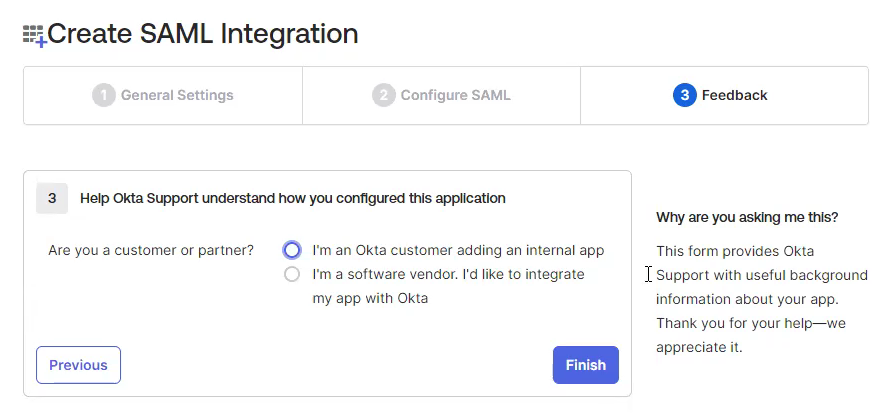
Under "3 - Help Okta Support understand how you configured this application" for "Are you a customer or partner" select "I'm an Okta customer adding an internal app".
-
Click Finish at the bottom of the screen.
-
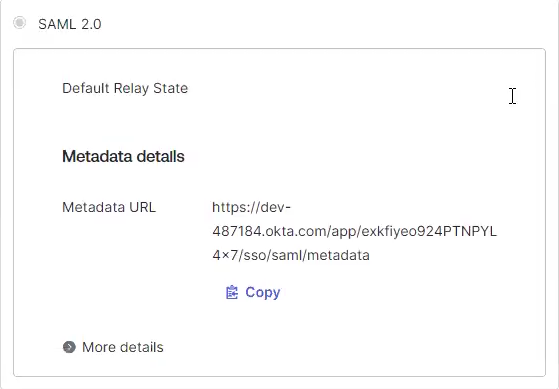
In Okta, under Settings, locate SAML 2.0 > Metadata details > Metadata URL.
-
Click Copy to copy the link to the clipboard.
-
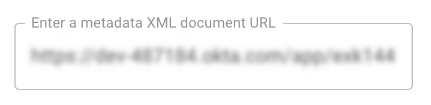
In the FortiMail Browser Security console, paste the clipboard contents into the "Metadata XML document URL" field.
-
Enter the domain identifiers - i.e., the domains of the users that use this identity provider to login.

-
Click Next.
Step 3 - Configure attribute mappings - opens.
Step 3: Configure the attribute mapping [optional]

In this step, you'll configure the attribute mappings between FortiMail Browser Security and the identity provider. You'll need to perform this step only if you'll be assigning policies to users based on their user attributes.
Example - to map the user's email address:
-
In Okta, locate the key that contains the user's email address.
-
In the FortiMail Browser Security console - step 3 - Configure attribute mappings - locate the Email address claim.

-
Click Next. Step 4 - Default assignment rules - opens.
Step 4: Assign a default policy
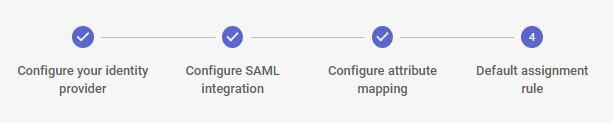
In this step, you'll specify a policy that will be assigned to all new endpoint users.
-
Under Choose an action, select Assign policy.

-
Select a policy that will be assigned to new endpoint users.

-
Click Create integration.
Step 5: Completing the Configuration
You must now configure the users and groups for the application in Okta. You can either add specific users to FortiMail Browser Security, or you can allow all users in the external identity provider to use the Browser Extension.
|
Note Some organizations use conditional access in Okta to restrict access to applications from only those devices that meet specific requirements. In certain circumstances, it is necessary to bypass these restrictions to enable access to the extension. For details, see Identity Provider Integration - Bypassing Conditional Access [FortiMail Browser Security]. |
-
For details on how to add endpoint users using the FortiMail Browser Security console, see Managing Endpoint Users. This enables you to assign a specific non-default policy to the new users before they first sign-in.
See also:
