This page includes:
About custom logos
You can add your own logo that will appear in various scenarios, in place of the FortiMail Browser Security logo. Your custom logo will appear in:
-
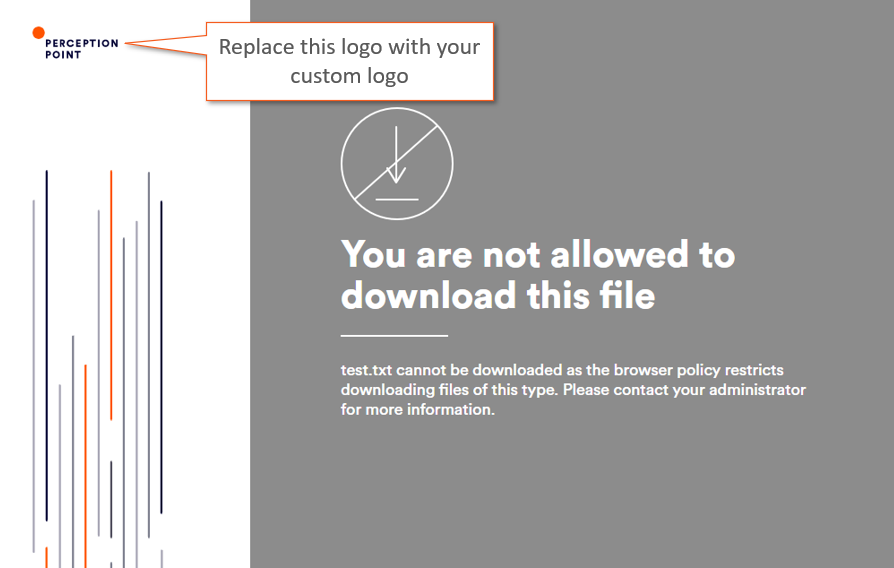
FortiMail Browser Security block pages: Your logo will appear in the website block pages and download block pages, as shown below.
-
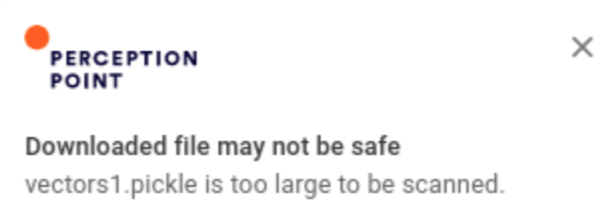
FortiMail Browser Security online user notifications: Your logo will appear in the FortiMail Browser Security online user notifications [toast messages] that are displayed to end users.
To be able to add your logo, the file containing your logo must be located at an accessible URL - in any of the common graphics formats. Your logo will be re-sized as required.
Adding a custom logo
To add a custom logo, you'll need to add the advanced feature below. For details on how to add an advanced feature, see Advanced Features.
|
Advanced feature |
Description |
|---|---|
|
customLogoUrl |
The URL where the custom logo is located - for example: https://acme.logos/acme-logo.jpg |
Hiding the FortiMail Browser Security logo
You can hide the FortiMail Browser Security logo in the FortiMail Browser Security block pages and the FortiMail Browser Security online user notifications that are displayed to end users.
How to hide the FortiMail Browser Security logo
To hide the FortiMail Browser Security logo, you'll need to add the advanced feature below. For details on how to add an advanced feature, see Advanced Features.
|
Advanced feature |
Description |
|---|---|
|
hidePPLogo |
Set the value to true to hide the FortiMail Browser Security logo. Default: false |
See also:
